xTool Studio Connection Issue Troubleshooting SOP
Part 1. Smart Troubleshooting
Step 1: Find device
- Connect your device.
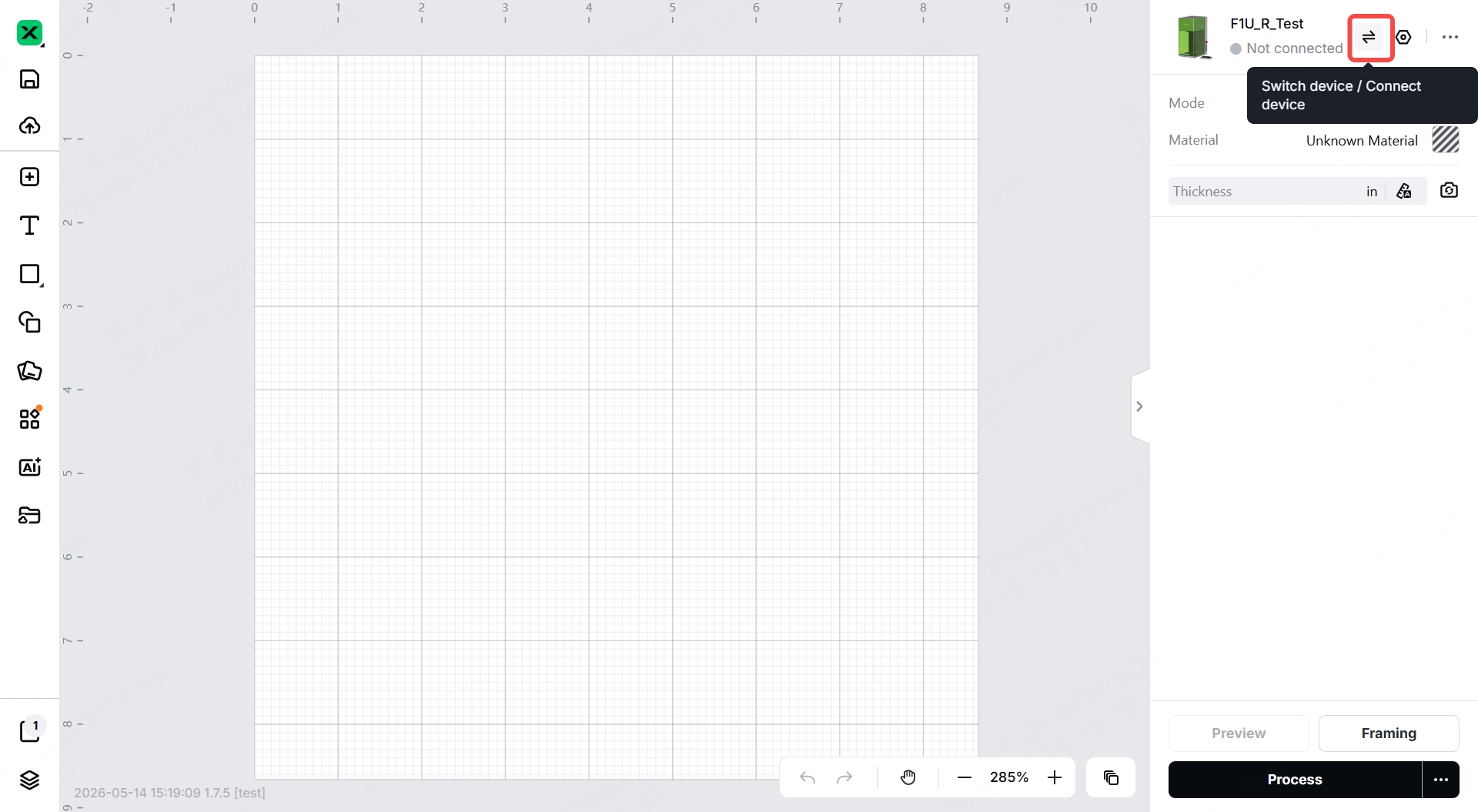
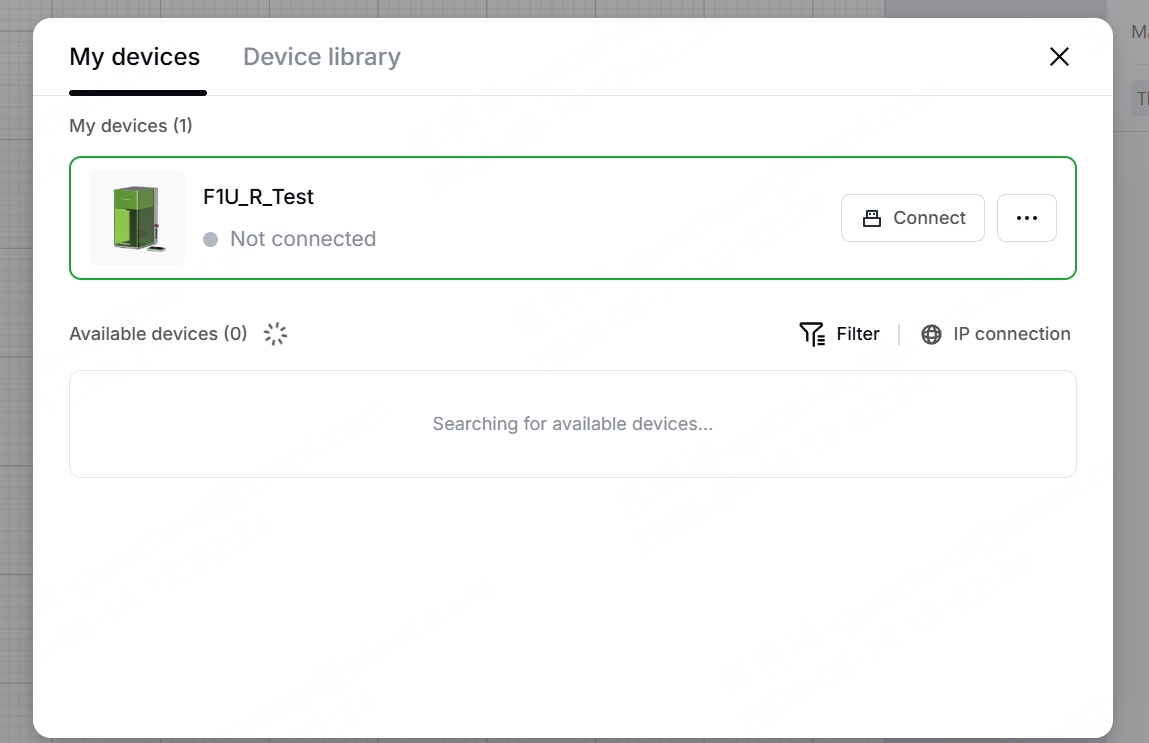
- The My devices screen opens and scans for available devices. You can also click Refresh to search again.
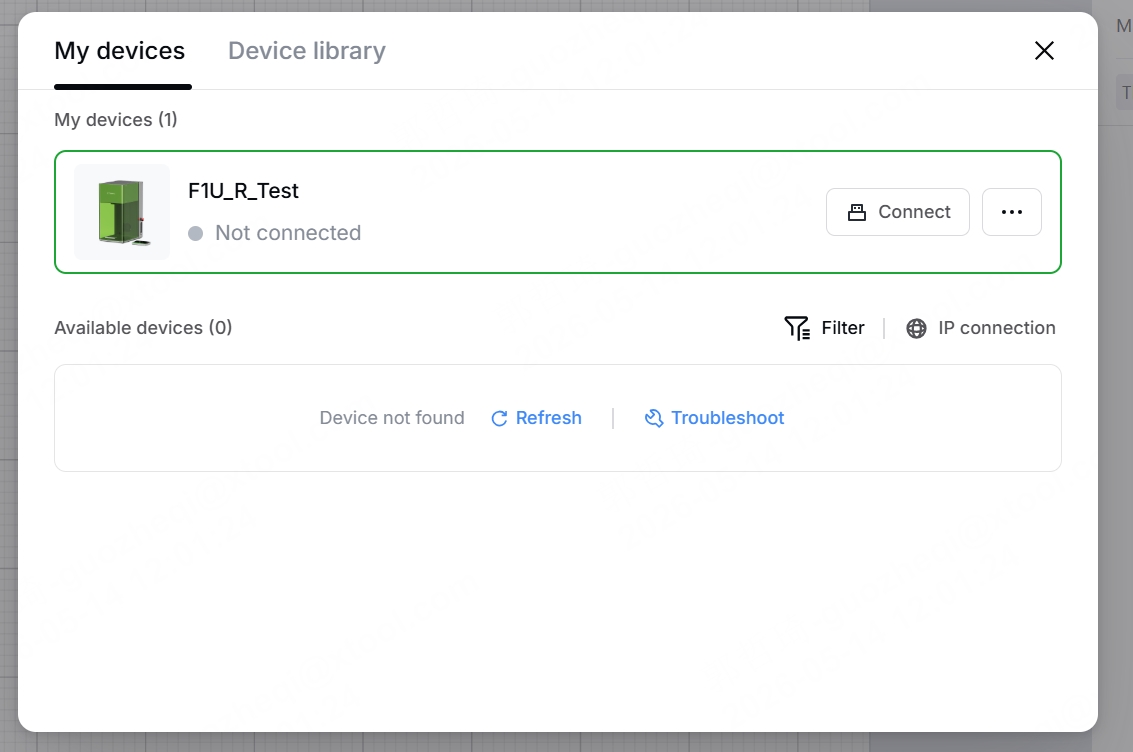
- Select USB or Wi‑Fi, then proceed with connection/detection.
- Wi‑Fi: confirm your computer and device are on the same network.
- USB: check that the cable and ports are properly connected.
- Still no result → go to Step 2: Troubleshooting. The system will automatically detect issues in the relevant area.
Step 2: Troubleshooting
1.Click Troubleshoot to start the guided diagnosis.
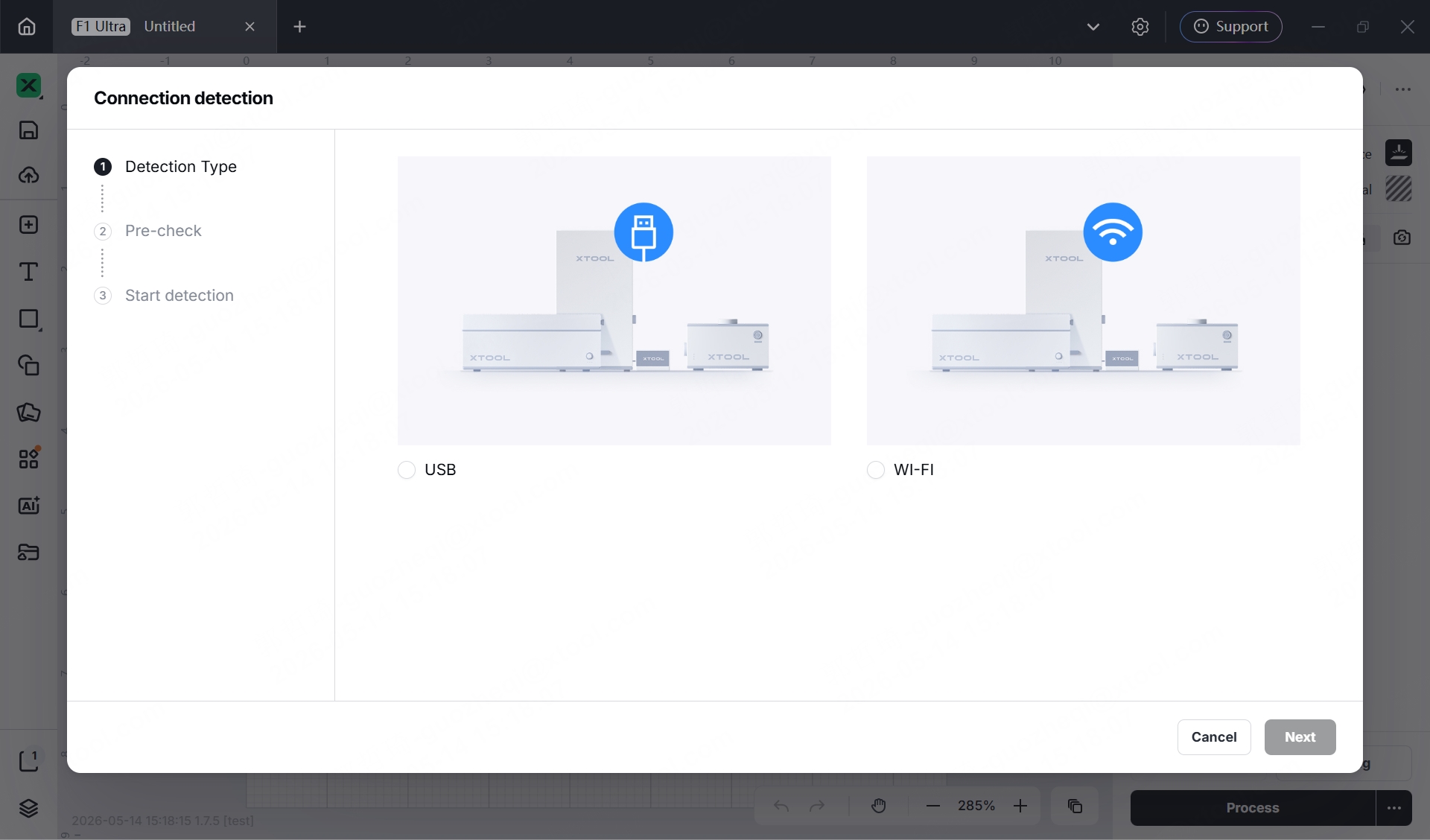
2.The system will automatically check both the software environment and hardware connection.
Part 2. Software Environment Check
Step 1. Driver Installation Check
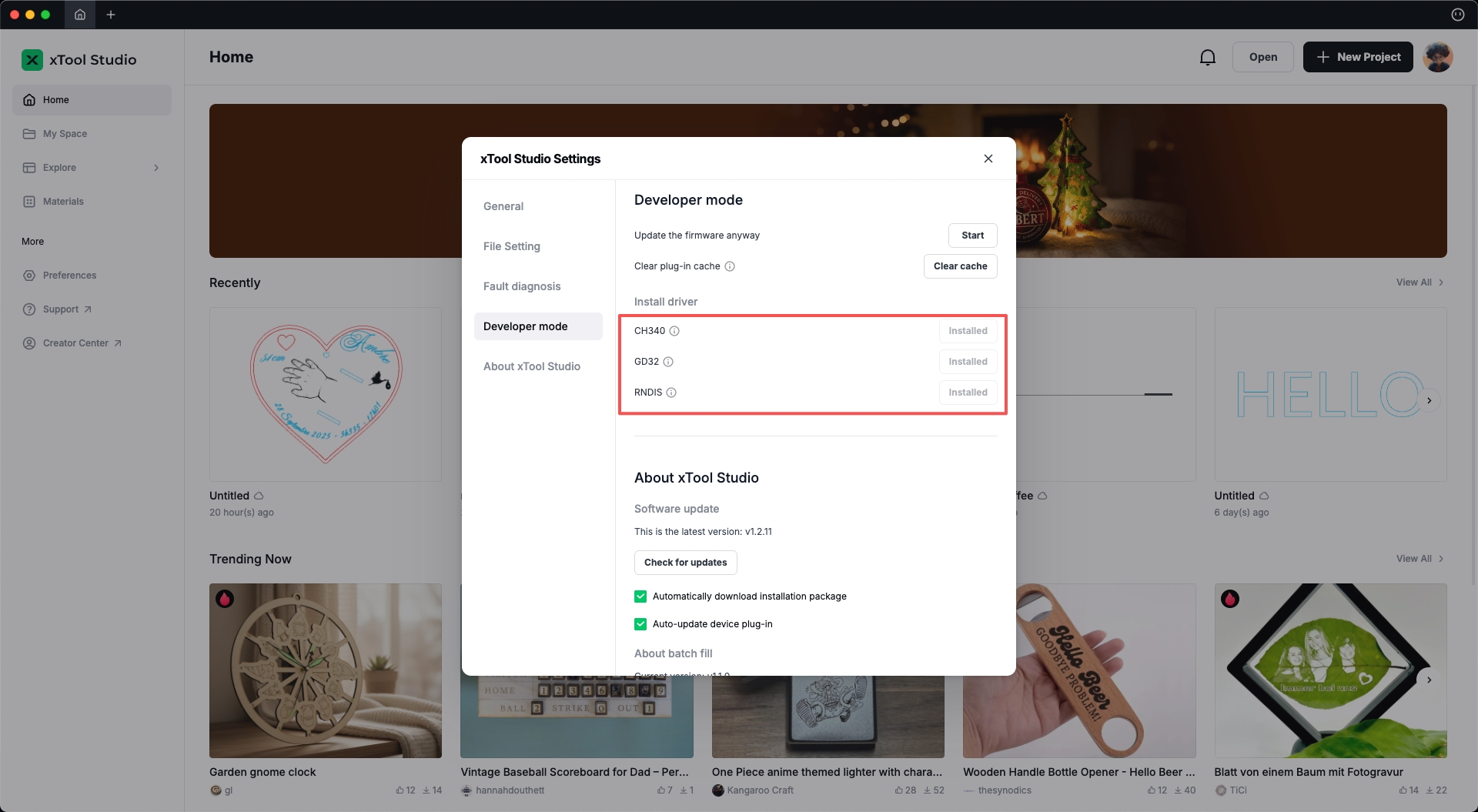
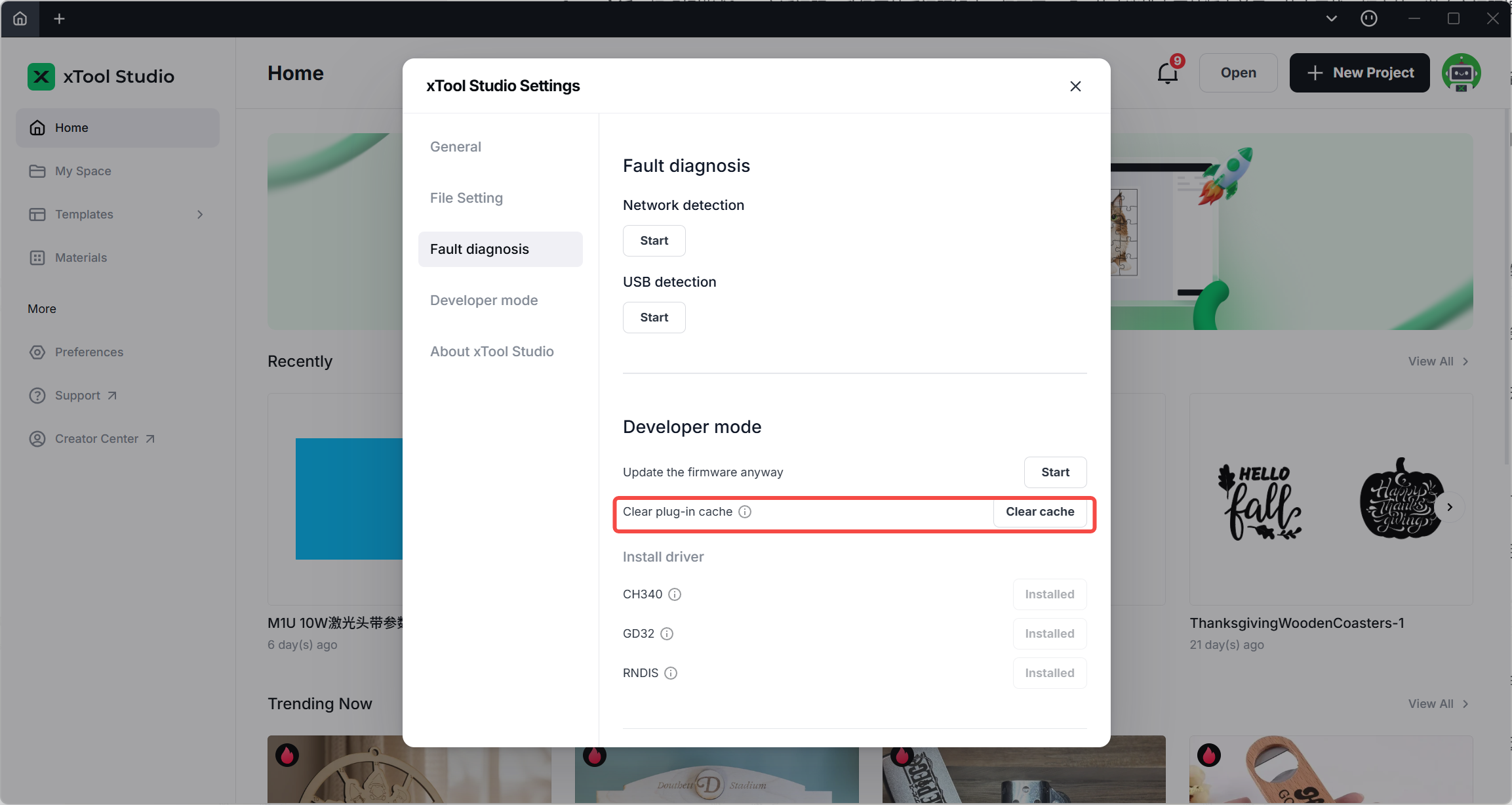
- Open xTool Studio, go to Settings, enable Developer Mode, and confirm whether all required drivers are installed.
- Install any drivers that are not yet installed.
Step 2. System Permission Check (macOS Only)
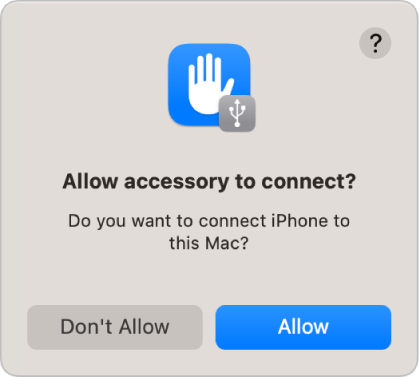
Enable “Allow Accessories”
When connecting accessories to a Mac with an Apple Silicon chip, you must approve new USB/Thunderbolt devices and SD cards.
- Selecting Allow enables both power and data transfer.
- Selecting Don’t Allow means the accessory can charge but cannot transfer data.
Note: On macOS 13.3 or later, you will also receive prompts for SD card approval.
Tip:
“Allow” is recommended for personal devices/accessories.
For public charging stations (e.g., airport kiosks), select “Don’t Allow”.
Change the Approval Setting (Optional)
If you do not want to approve new devices manually every time:
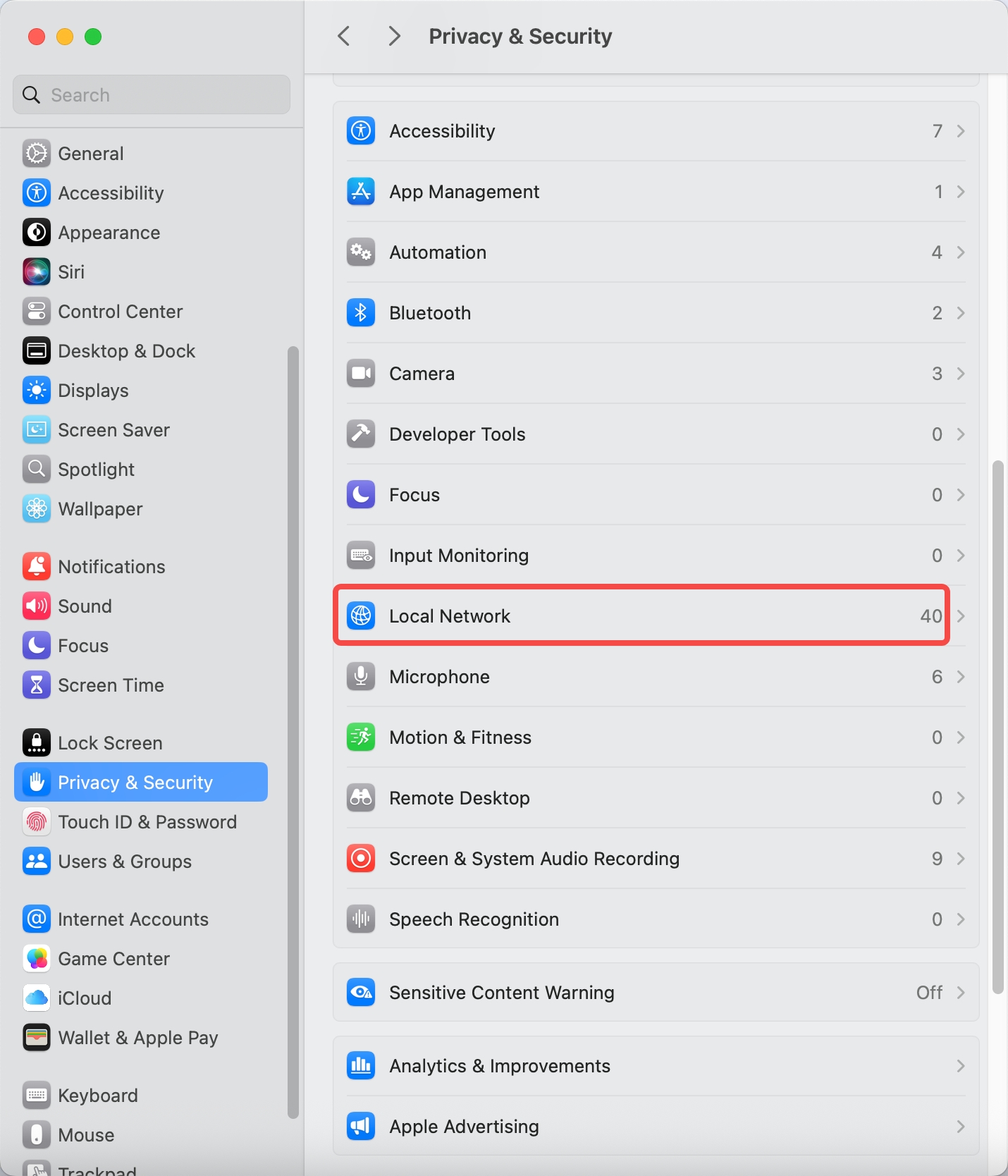
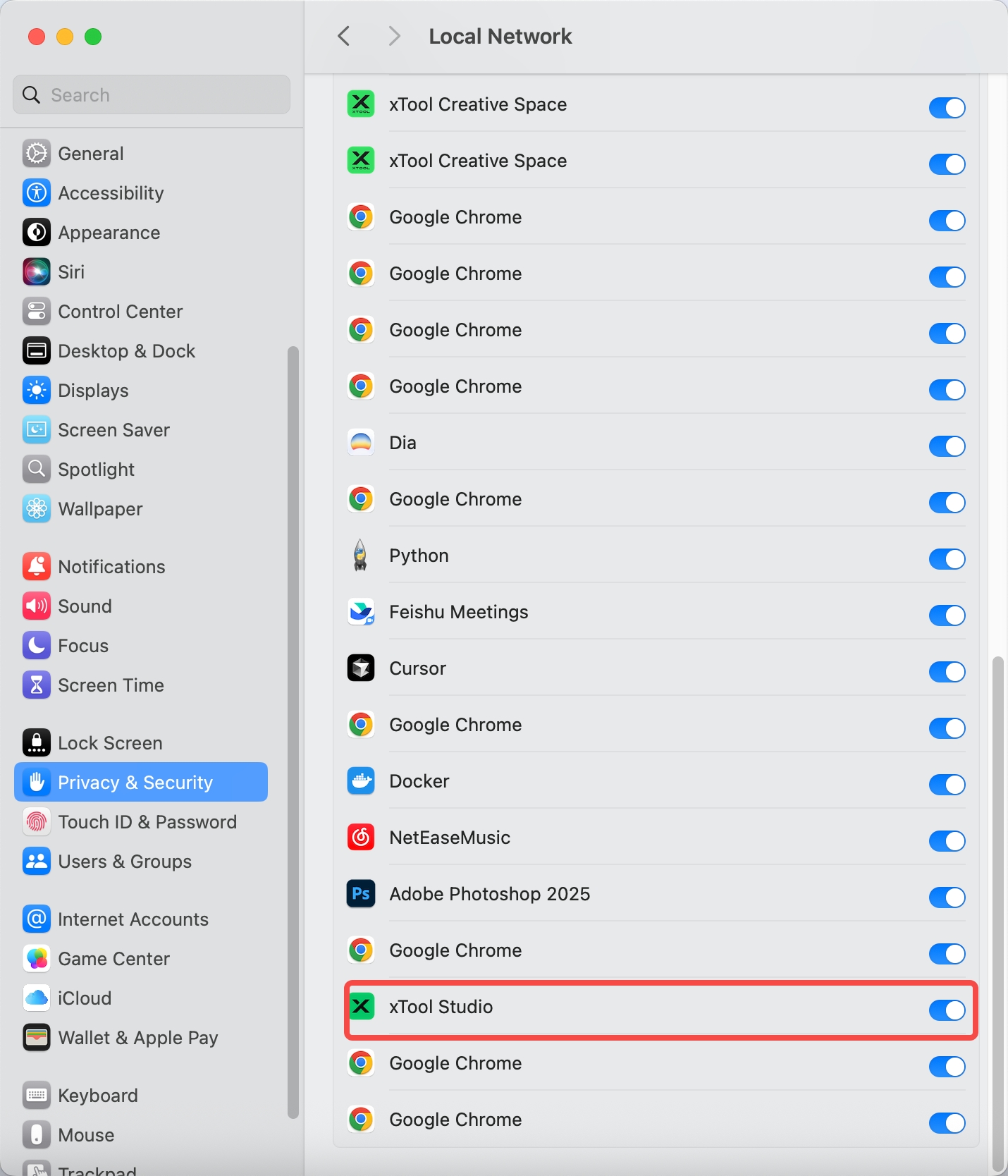
- Go to Apple Menu > System Settings and open Privacy & Security.
- Find Allow accessories to connect and set it to Automatically When Unlocked or Always.
Step 3. Reset Network Configuration (Windows Only)
Some Windows systems may fail to access devices correctly due to DNS pollution or network configuration errors.
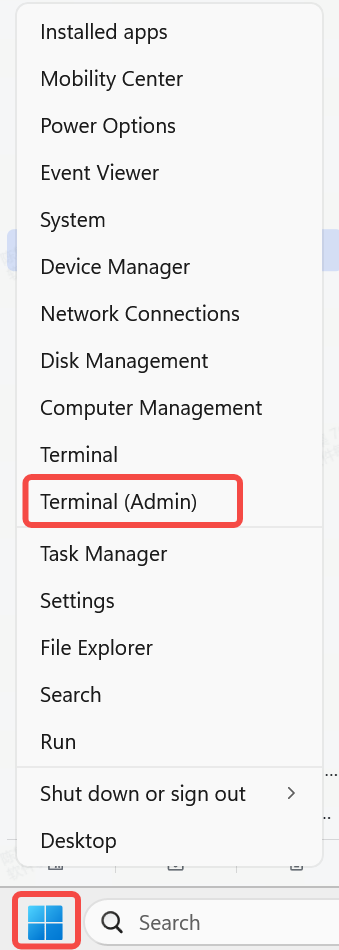
- Right‑click the Windows icon and open Command Prompt (Admin).
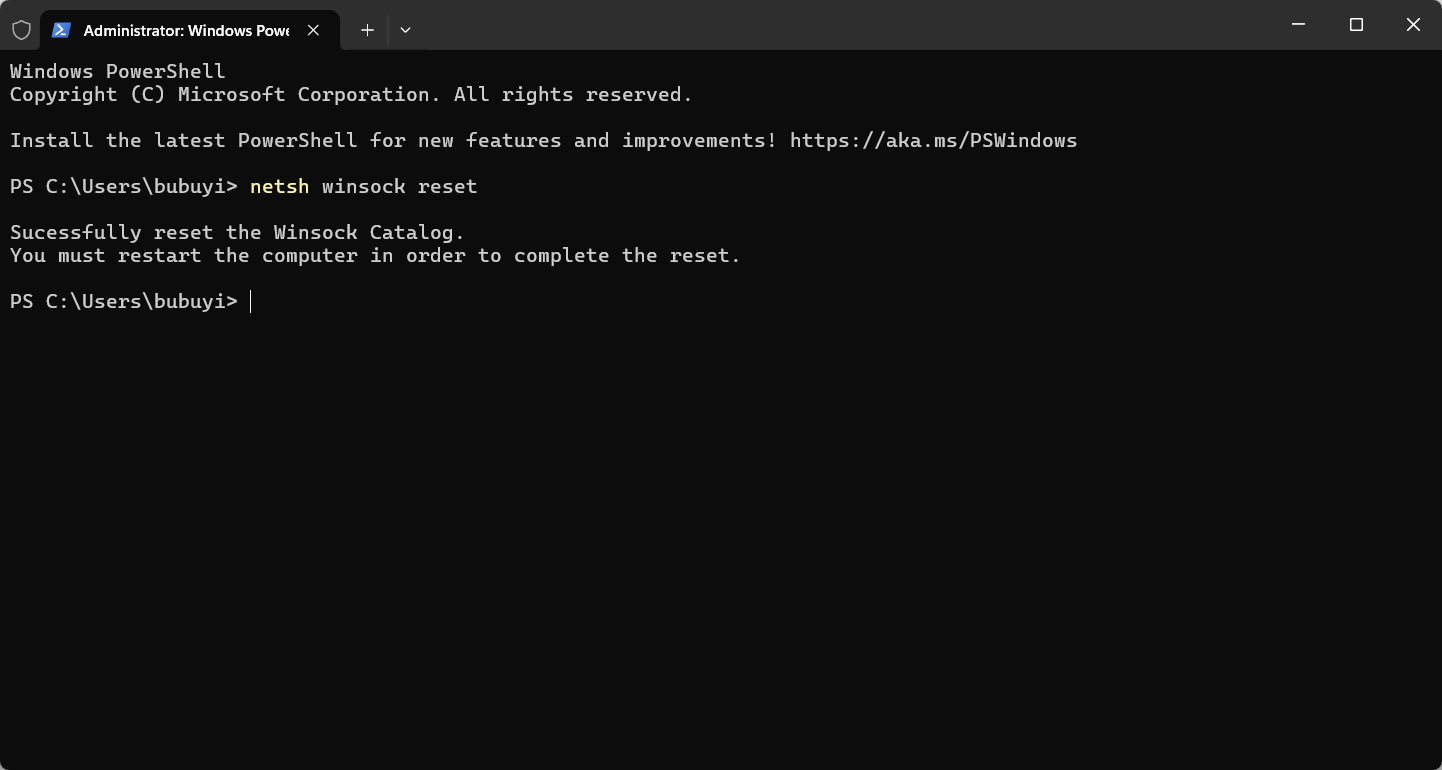
- Enter the following command and press Enter:
netsh winsock reset - Restart your computer.
Part 3. Hardware Environment Check – Wired Connection
Power Supply Check
(Required: Emergency Stop Switch)
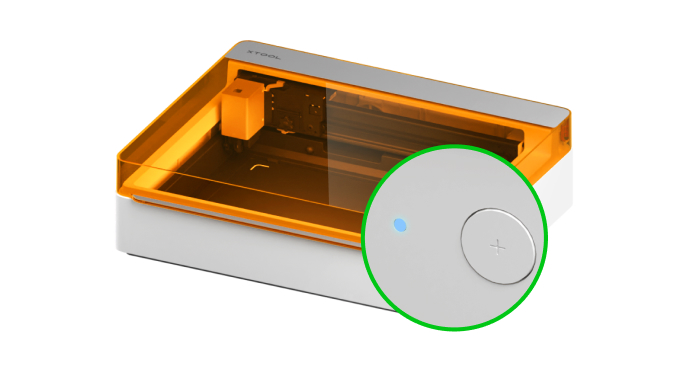
- Ensure the machine is properly powered on, indicator lights are on, and the emergency stop switch is released.
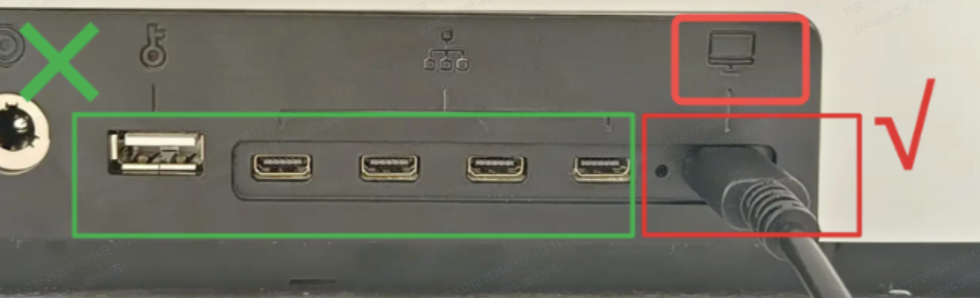
- Confirm the correct Type‑C port is used (some devices include multiple ports — connect to the one marked with a computer icon).
Cable Check
- Ensure you are using the original xTool cable.
- Ensure the cable is not damaged and the connectors are clean.
- If the cable may be faulty, temporarily test with an original phone data cable.
Do not use third‑party charging cables, as many do not support data transfer.
(You can test by connecting your phone to the computer and checking if file transfer works.)
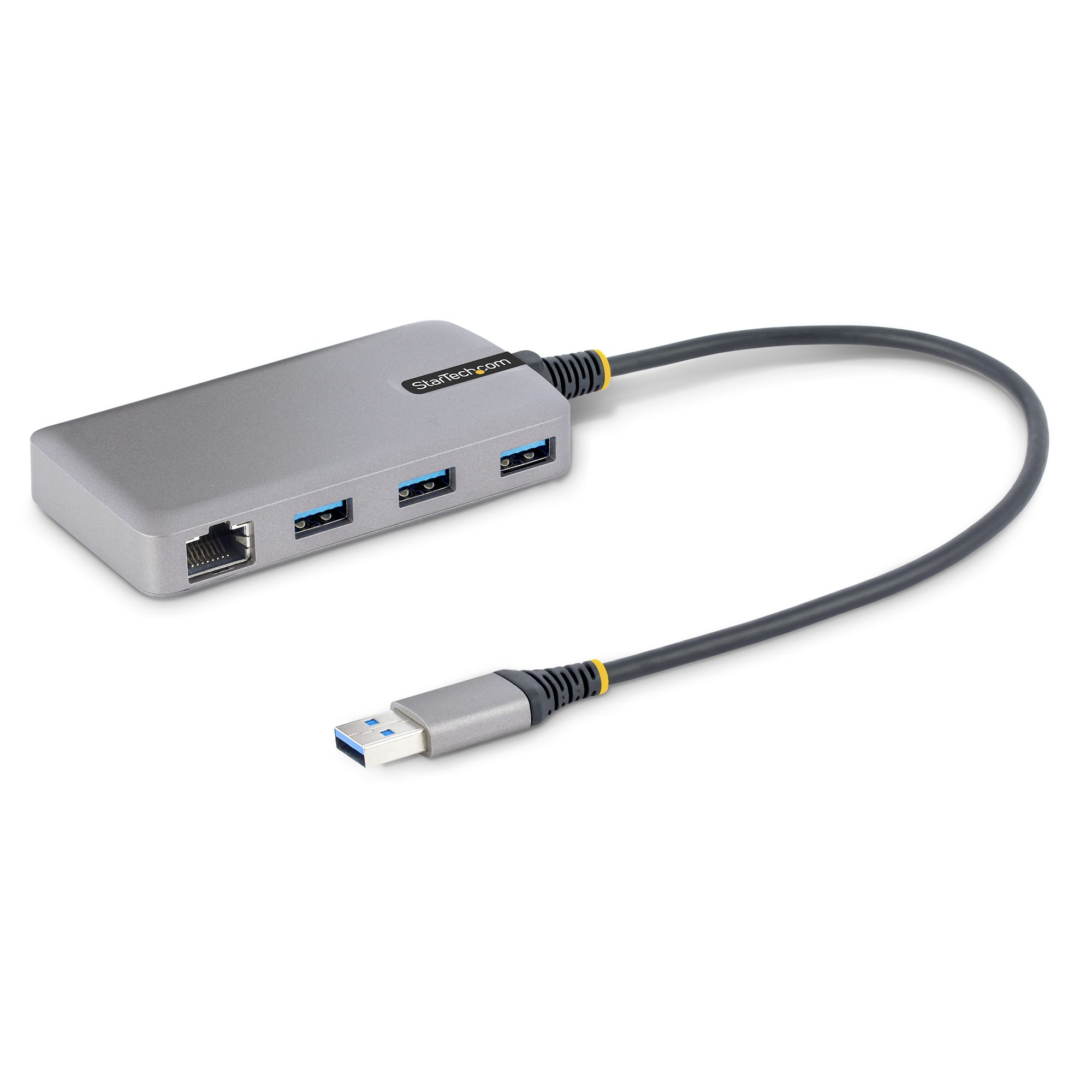
USB Hub Check
- Ensure your USB hub is recognized by the computer and the USB ports on it can transfer data.
(Test by connecting a phone through the hub and checking if file transfer works. Some hubs only work on specific ports — try switching ports.) - If the USB hub cannot communicate properly, remove it and connect the device directly to the computer using the cable.
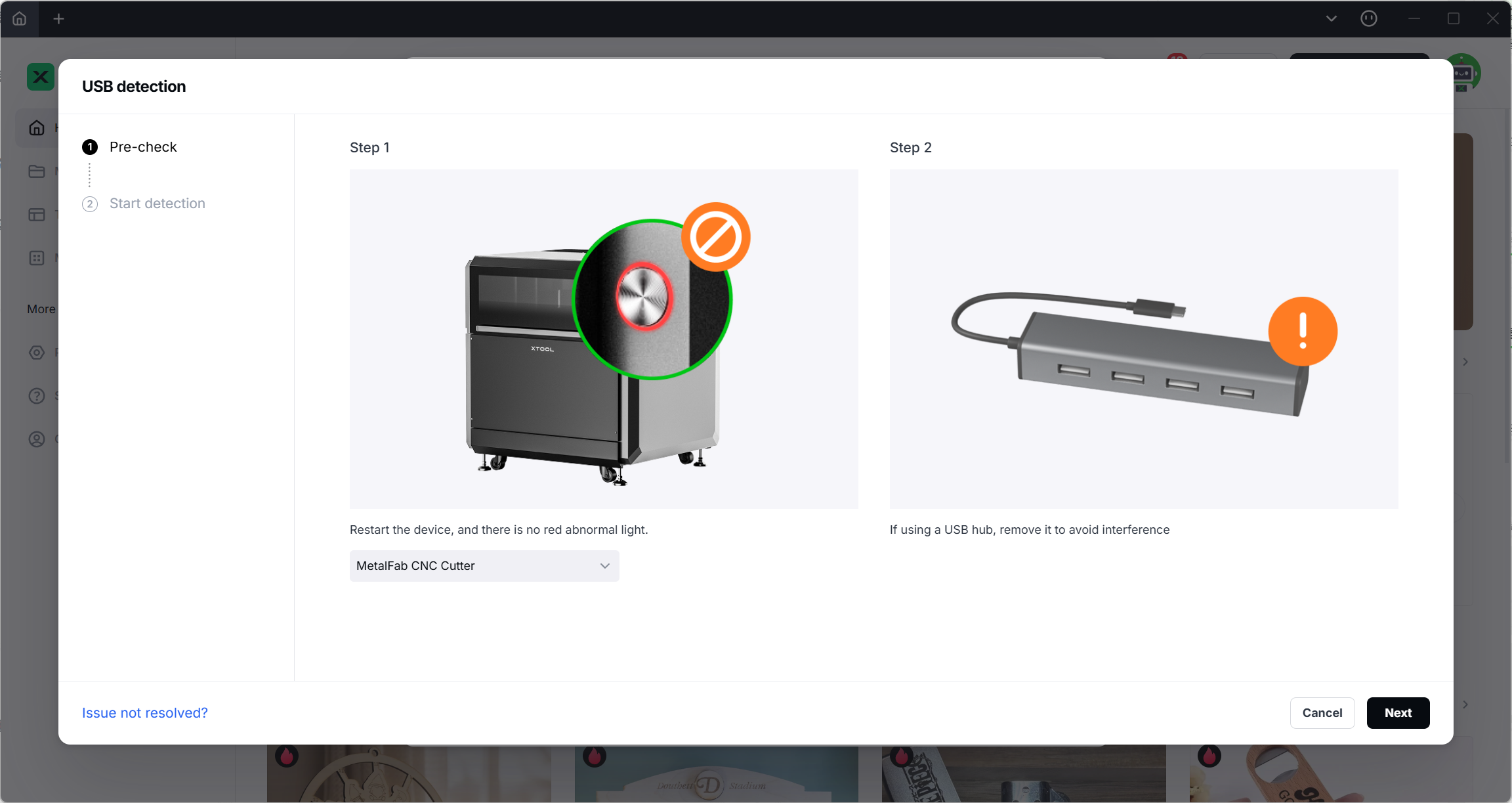
- Make sure no other devices are connected to the USB hub — unstable hub power may cause connection failure.
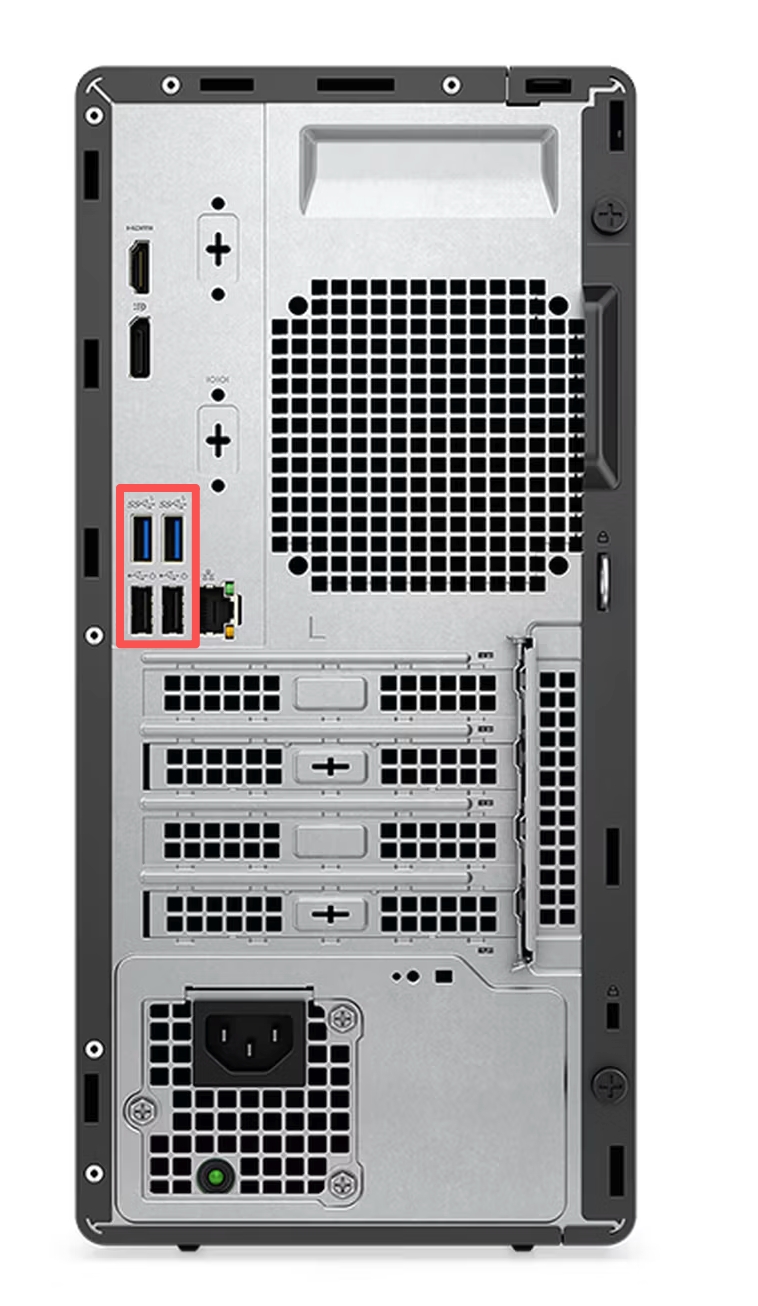
Computer USB Port Check
- Check whether your computer’s USB port can recognize a phone.
- Do not use the front USB ports of desktop computers — use the rear USB ports instead.
Part 3. Wireless Network Check – Wi‑Fi Connection
Confirm Wi‑Fi Band Compatibility
Ensure the Wi‑Fi network used for device setup matches the supported wireless band.
If the frequency band is not supported, the device will not detect Wi‑Fi.
Wi‑Fi network | Series | Supported Models |
2.4G | F1 Series | F1 F1 ultra F1 lite |
D Series | D1 D1PRO | |
M Series | M1 M1 ultra | |
S Series | S1 | |
P Series | P1 P2 P2S | |
2.4G/.5G | DT Series | Apparel Pinter |
HJ Series | MetalFab | |
F2 Series | F2 |
If Your Device Frequently Disconnects or Fails to Connect via Wi‑Fi
Please follow the tutorial below to optimize your network environment:
https://support.xtool.com/article/2907
Troubleshooting Steps
- Power off the device, unplug it for 3 minutes, then restart it.
- Restart your computer and open xTool Studio again.
- Download the latest version of xTool Studio for your device from the official website:
https://www.xtool.com/pages/software#1
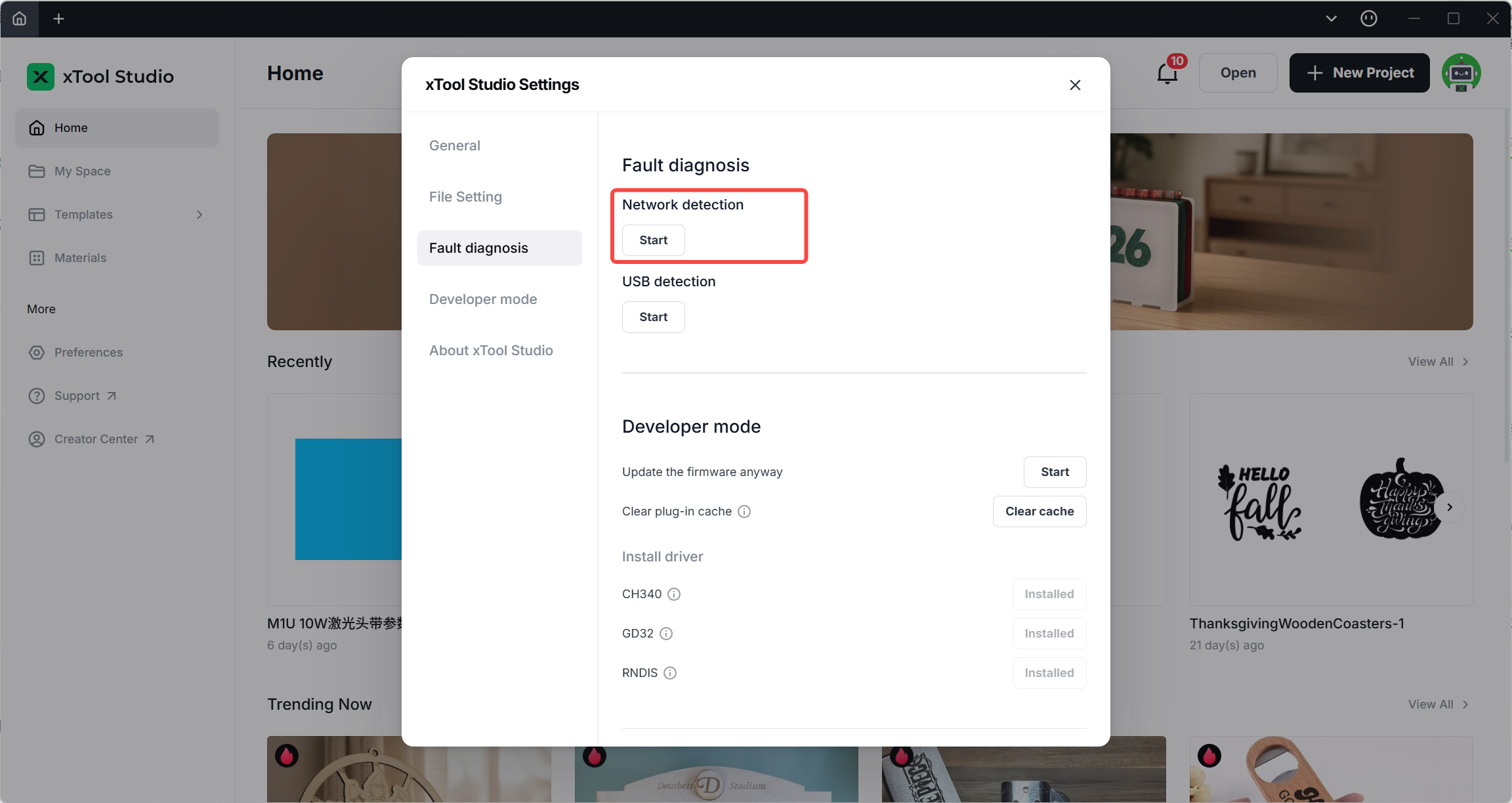
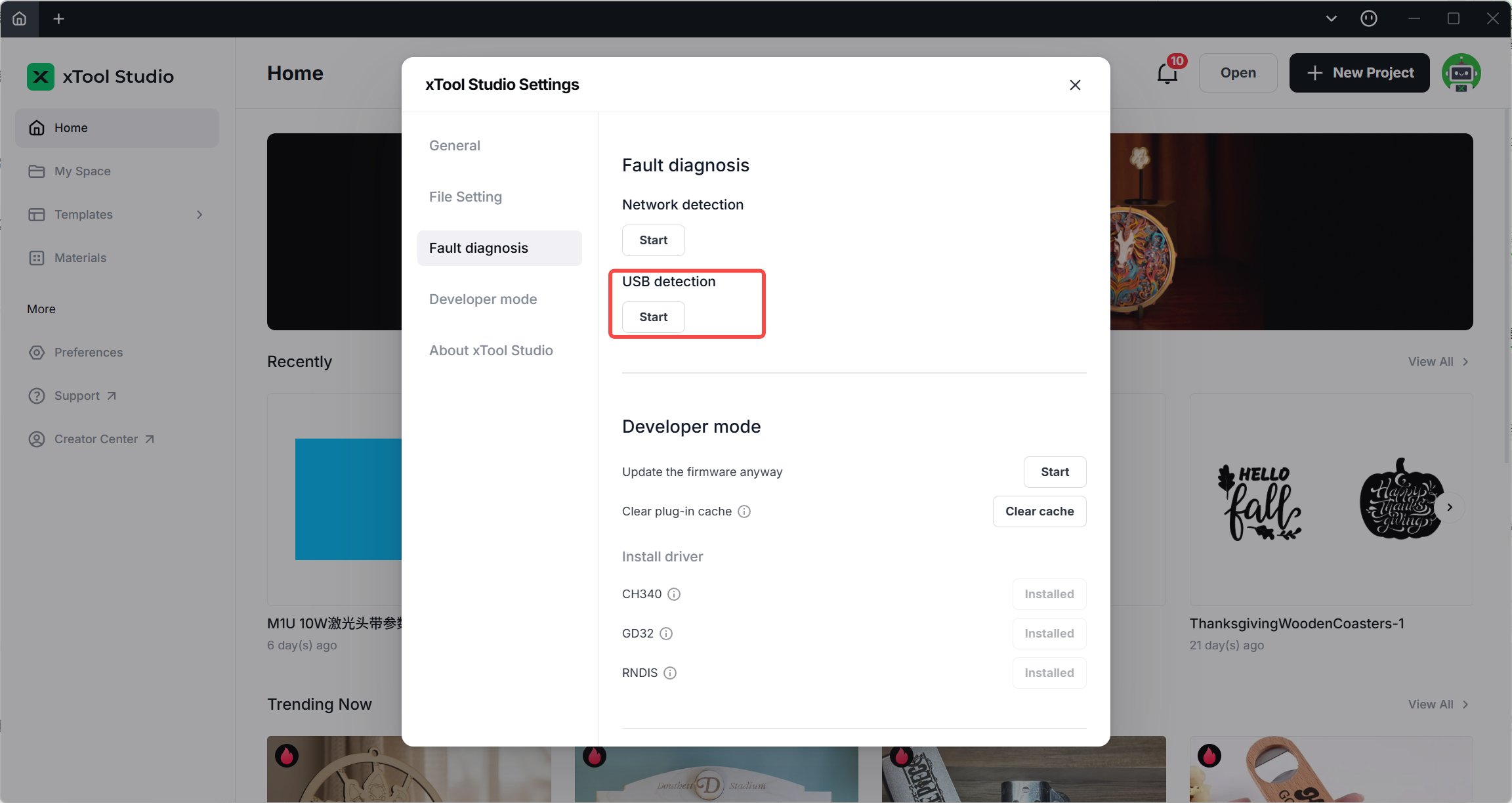
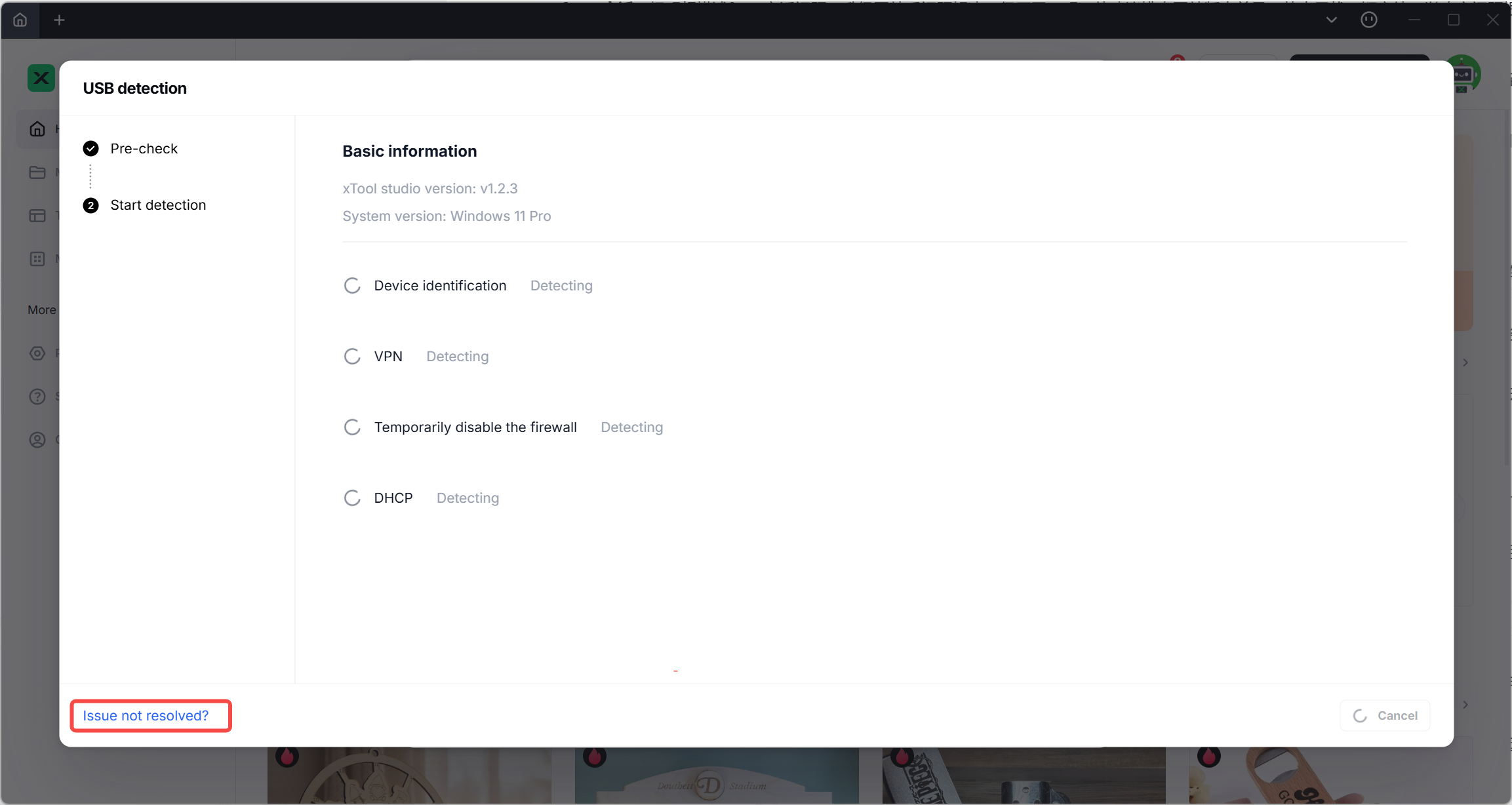
Then go to Settings > Fault Diagnostics and run the basic diagnostic process: - For Wi-Fi connections, select Network Detection.
- For USB connections, select USB Detection.
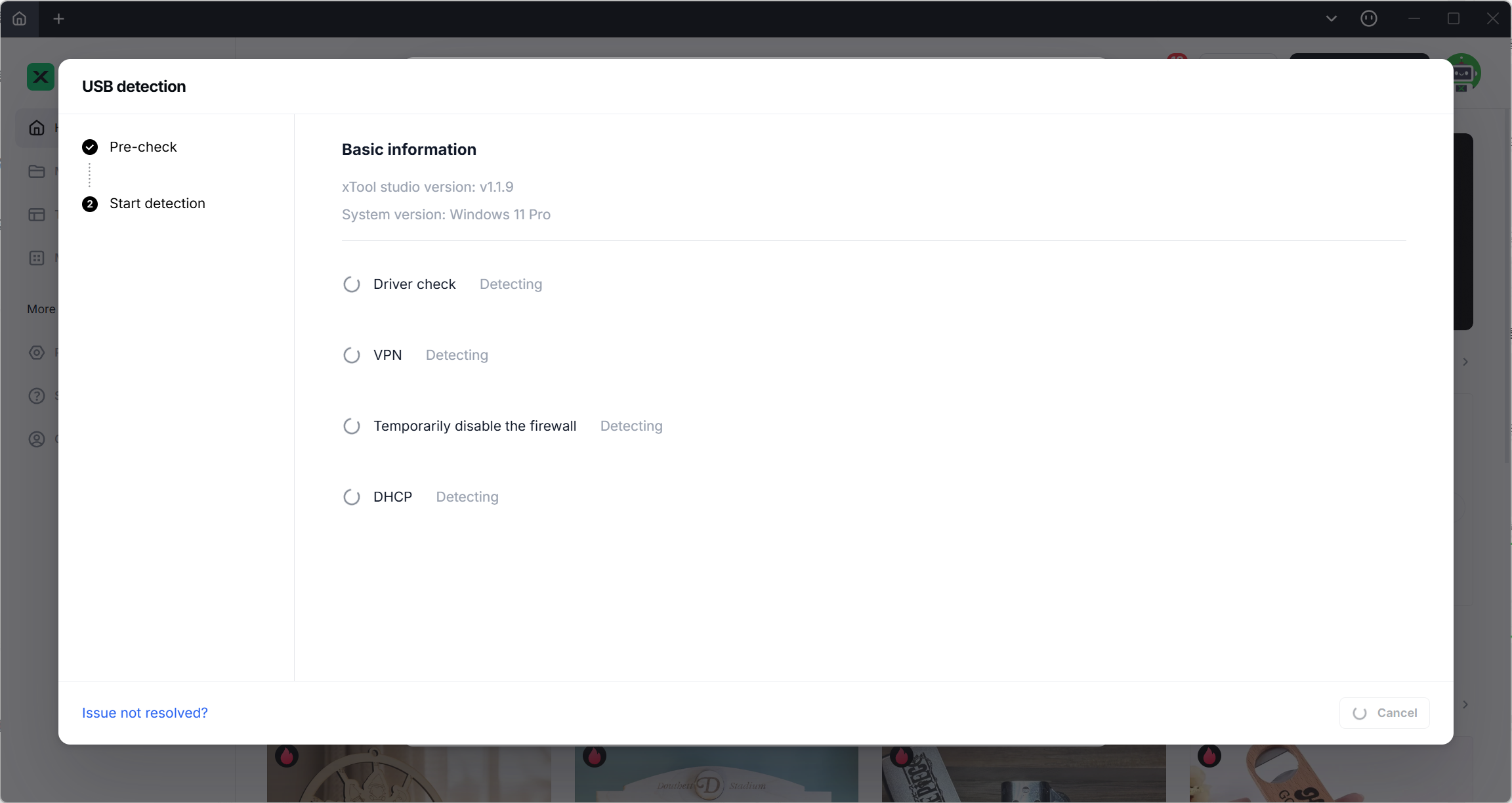
- Select your device for automatic detection.
On macOS, the diagnostic tool requires admin permission, so you will need to enter your Mac password.

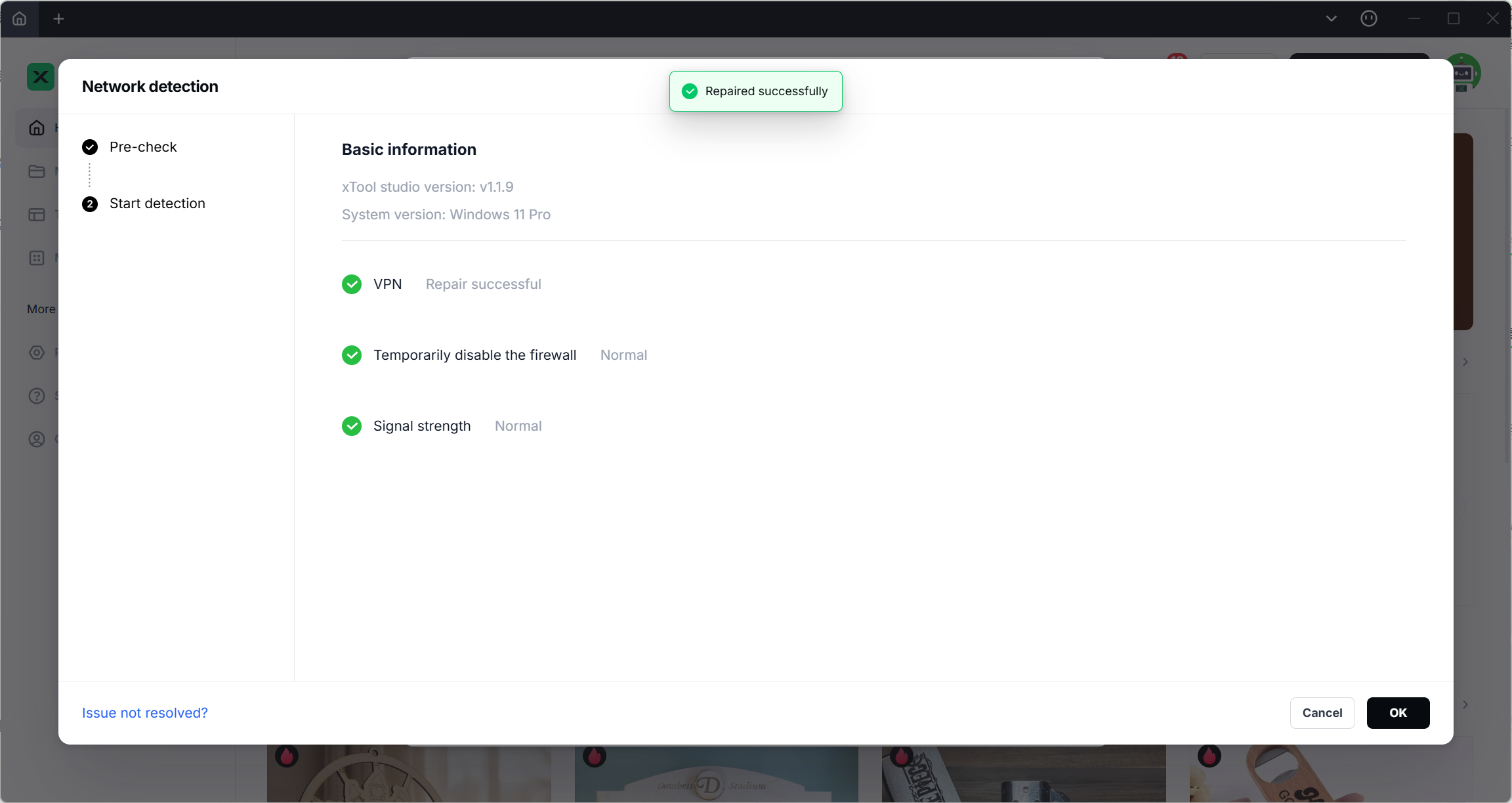
- Auto Repair
The software will attempt automatic detection and repair.
If repair fails or no issue is detected:
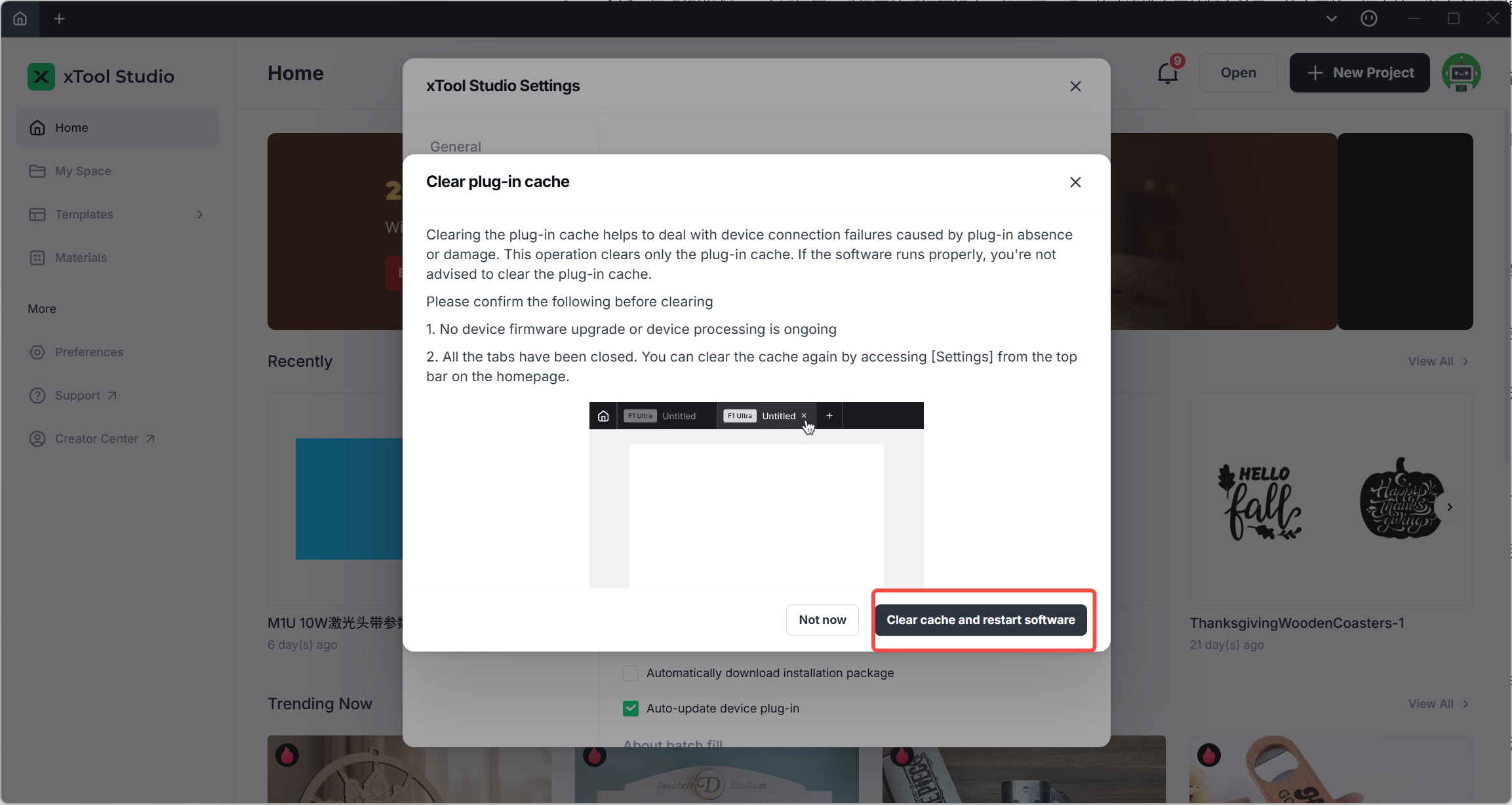
- Close all tabs.
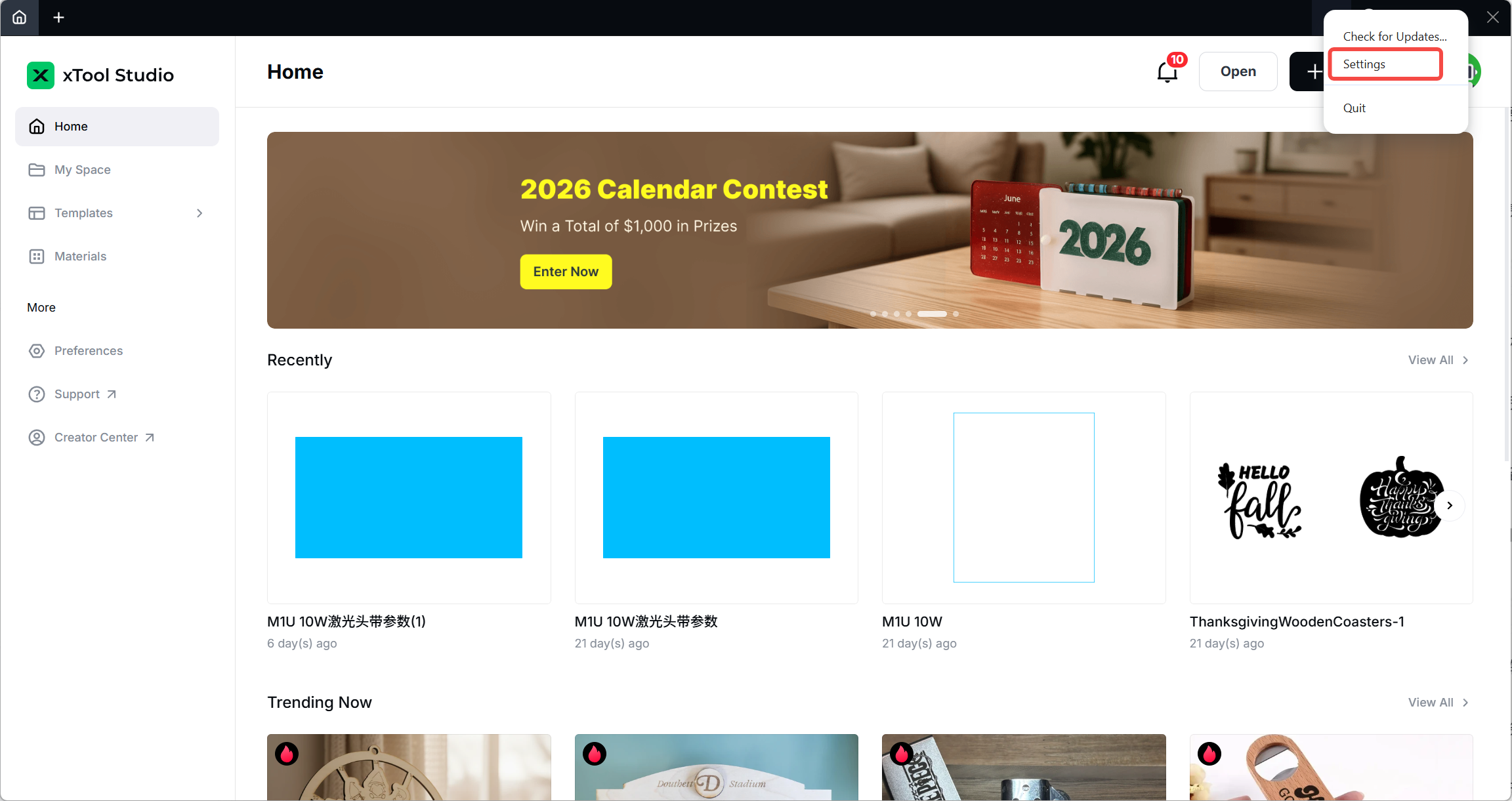
- Go to Settings and clear the Plugin Cache.
- Submit Feedback
Click Submit Feedback and upload the analysis logs.
- After Submitting Feedback
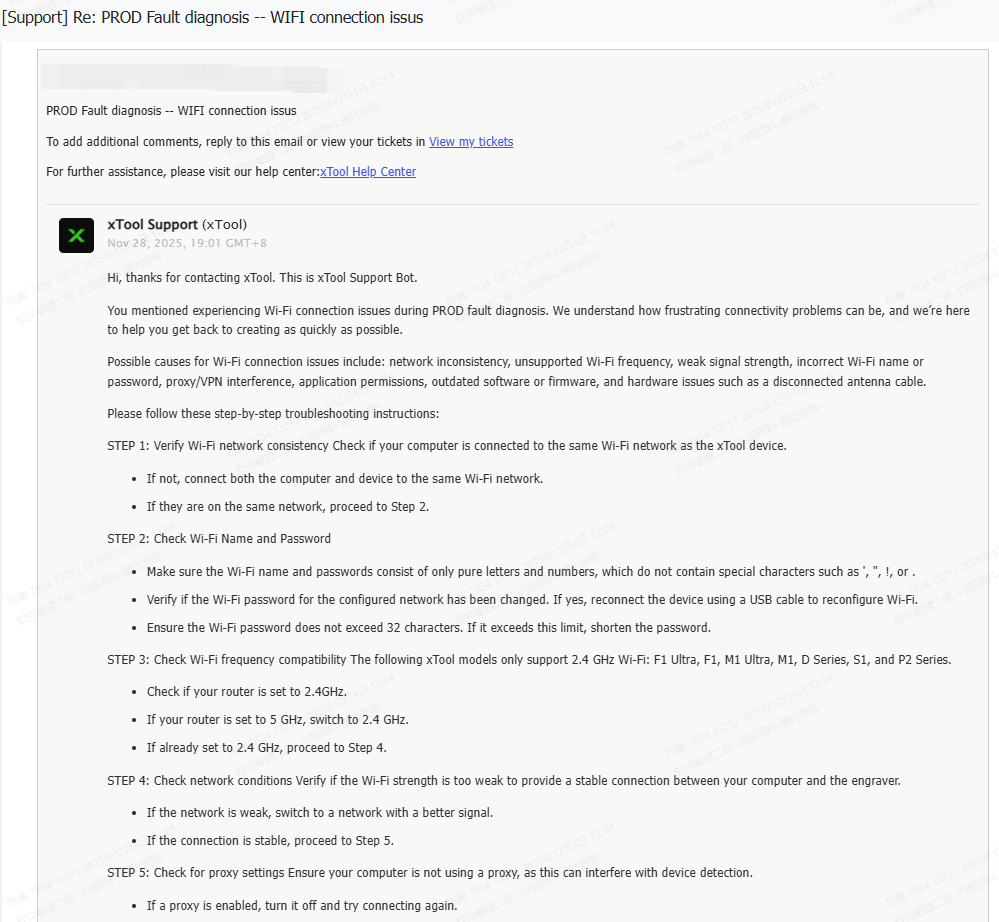
xTool Support will send you a reply.
Please provide the following information in your reply:
- Computer specifications
- xTool Studio version
- A video showing the connection failure
- For USB issues: photos showing how your device is connected to the computer
If Issues Persist
Please contact xTool Support:
https://support.xtool.com/
We will help you resolve the problem or provide remote technical support as soon as possible.