
These functions are available for all types of objects.
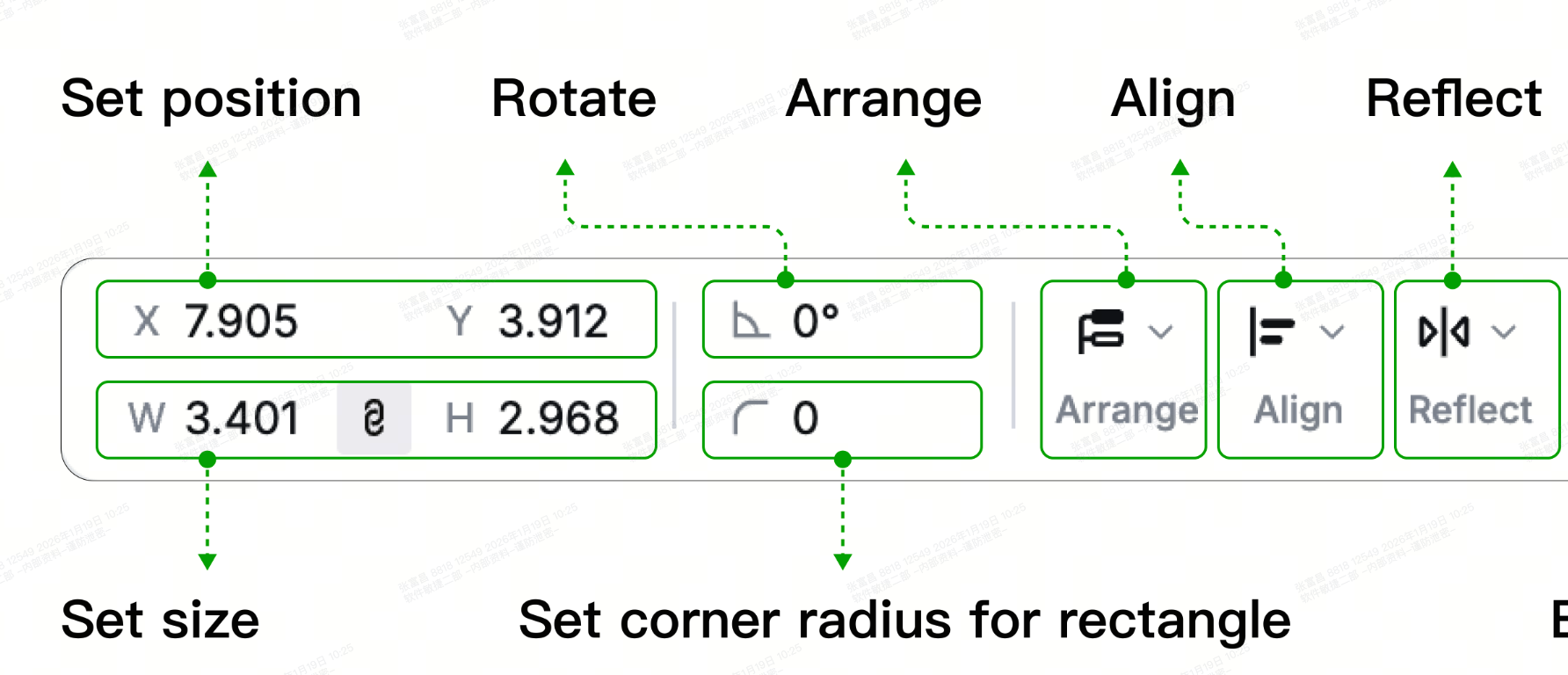
Set the position of an object
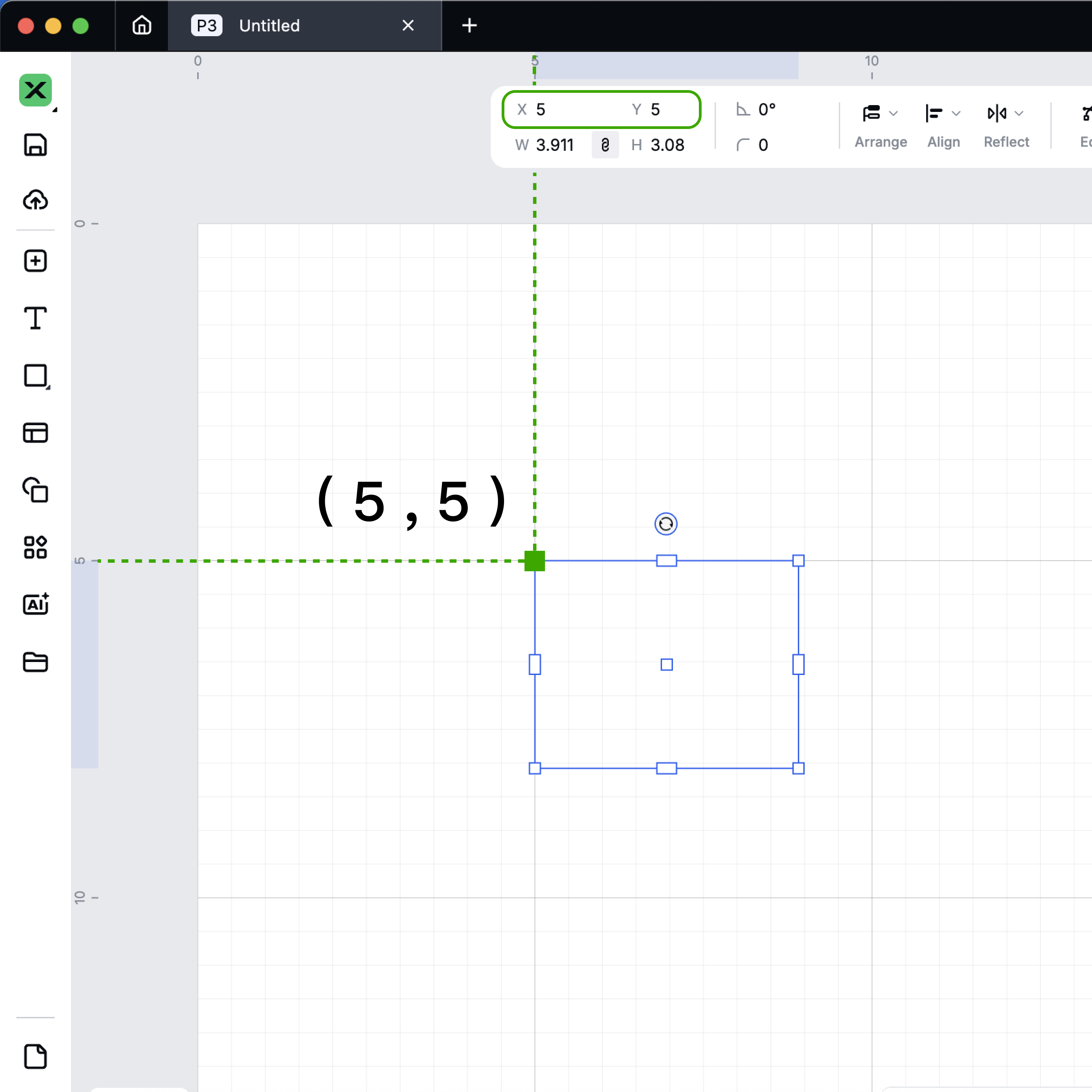
You can set the position of an object precisely by entering the x and y coordinates of its upper-left edge.
The unit can be set in Settings.
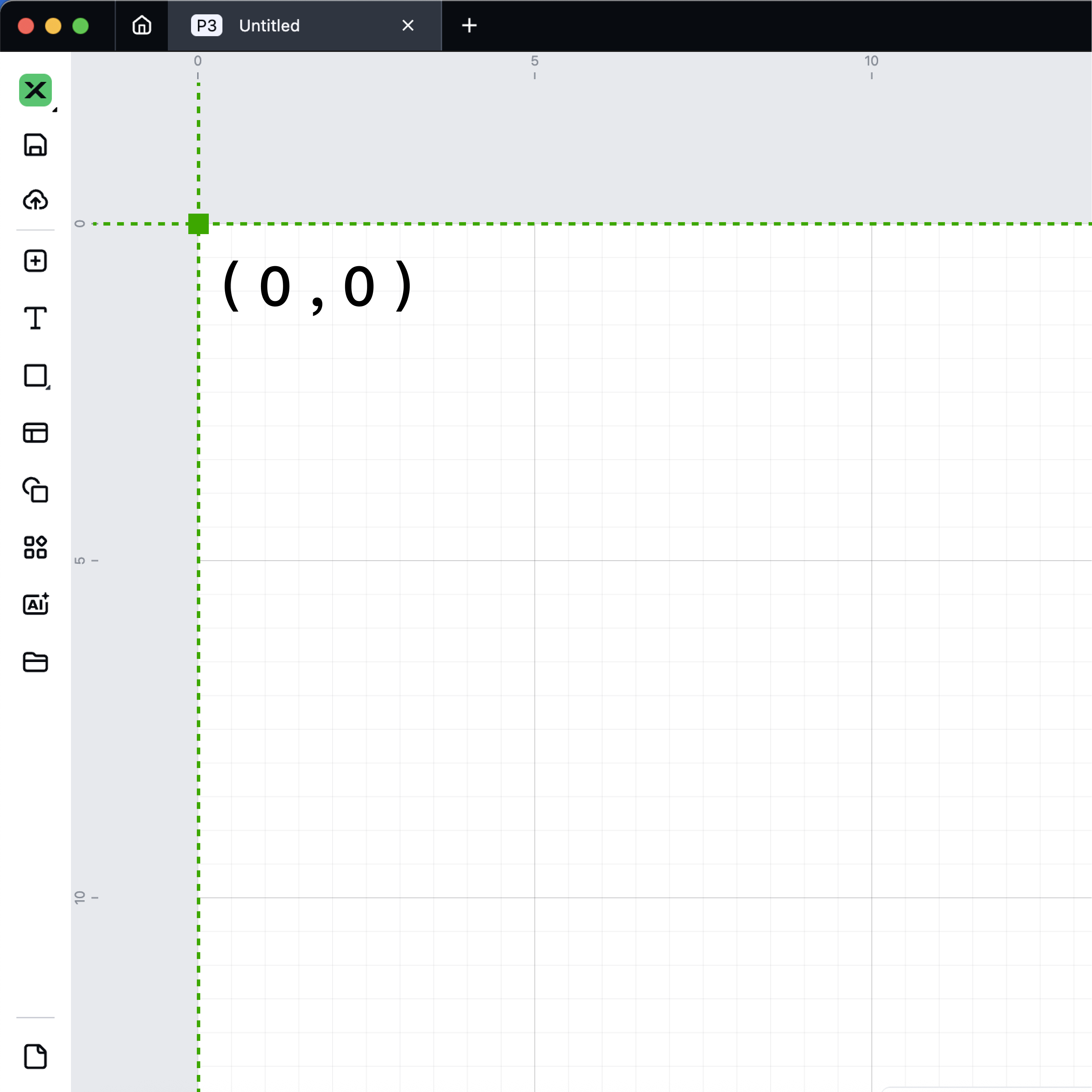
The position (0, 0) is in the upper-left corner of the canvas.
Arrange the stacking order
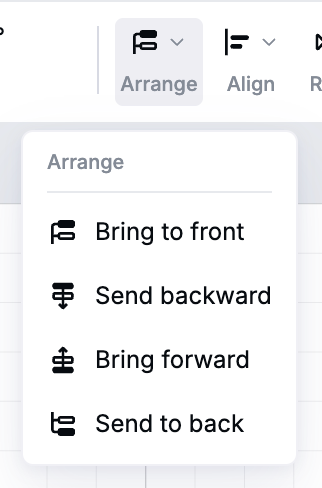
- Bring to front: moves the selected object, group, or layer to the top of the stacking order
- Send backward: moves the selected object, group, or layer backward one position in the stacking order
- Bring forward: moves the selected object, group, or layer forward one position in the stacking order
- Send to back: moves the selected object, group, or layer to the bottom of the stacking order
Alignment
Selecting objects one by one
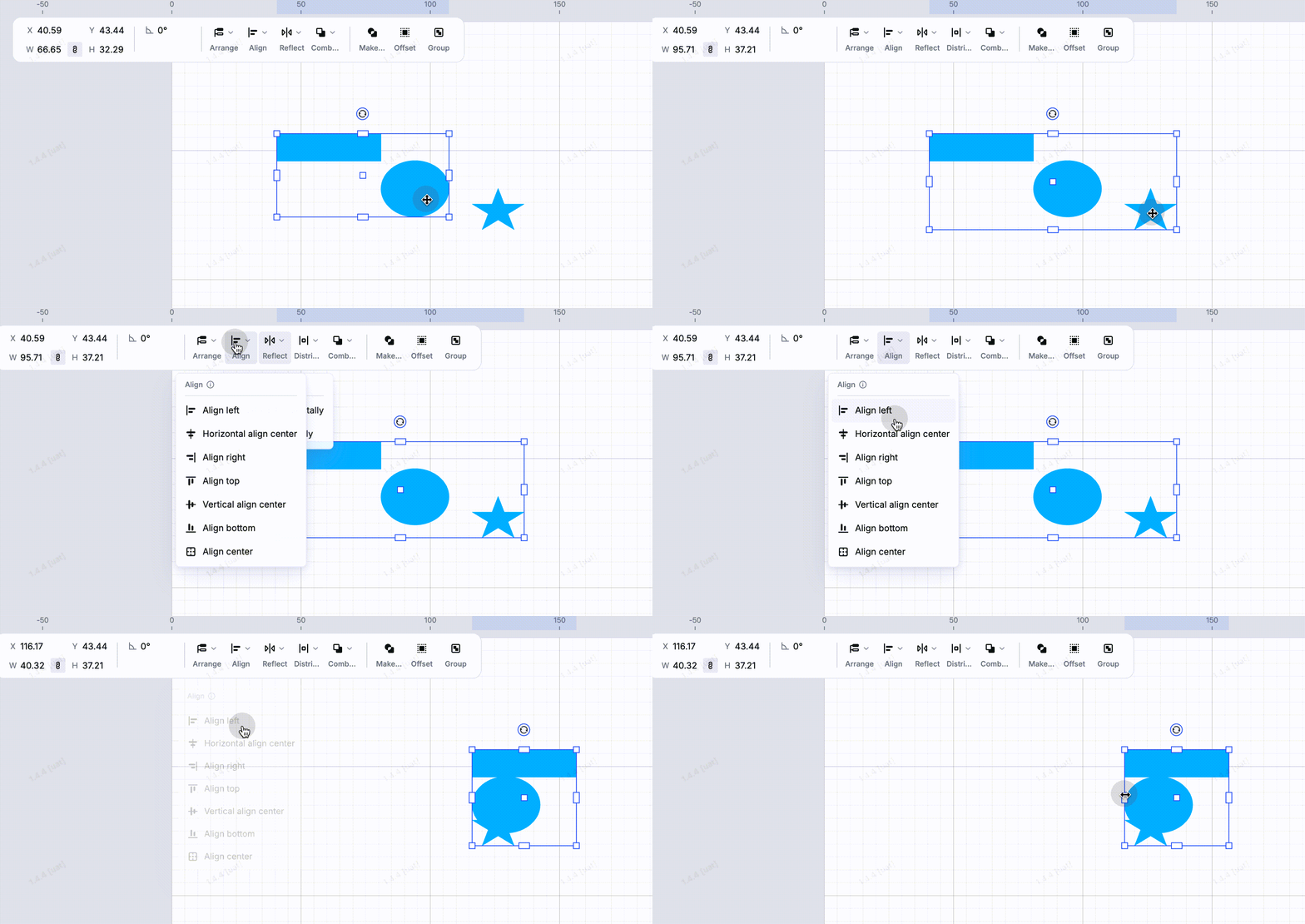
Reference object: the last selected object
When objects are selected individually (e.g. Shift-click or Ctrl-click), all alignment operations use the last selected object as the reference.
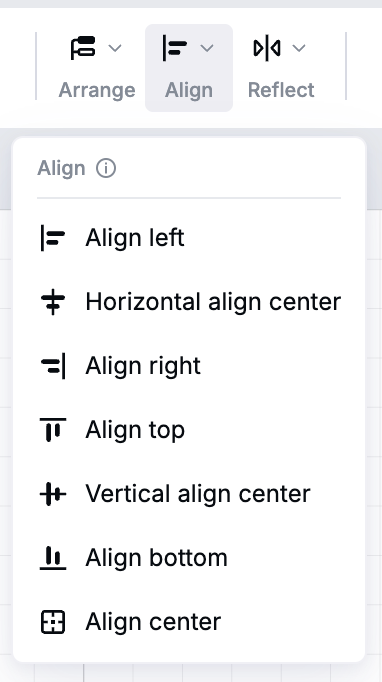
- Left Align: Align the left edges of the other selected objects to the left edge of the last selected object.
- Horizontal Center: Align the horizontal center lines of the other selected objects to the horizontal center line of the last selected object.
- Right Align: Align the right edges of the other selected objects to the right edge of the last selected object.
- Top Align: Align the top edges of the other selected objects to the top edge of the last selected object.
- Vertical Center: Align the vertical center lines of the other selected objects to the vertical center line of the last selected object.
- Bottom Align: Align the bottom edges of the other selected objects to the bottom edge of the last selected object.
- Center Align: Align the geometric centers of the other selected objects to the geometric center of the last selected object.
Selecting objects by dragging a frame
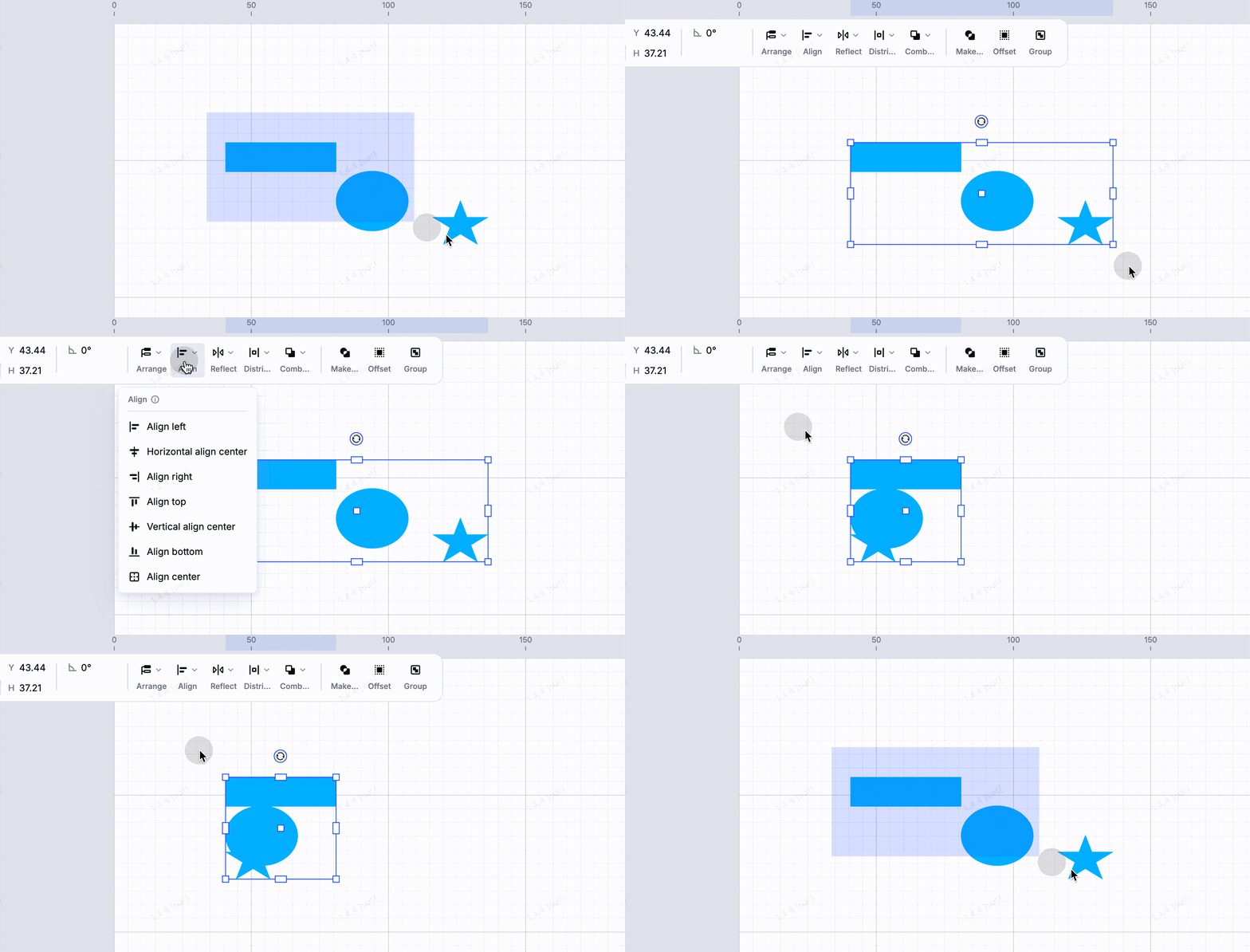
Reference object: the bottommost object in the layer order
When multiple objects are selected using a selection frame, alignment is based on the object that is lowest in the layer hierarchy.
- Left Align: Align the left edges of all selected objects to the left edge of the bottommost object.
- Horizontal Center: Align the horizontal center lines of all selected objects to the horizontal center line of the bottommost object.
- Right Align: Align the right edges of all selected objects to the right edge of the bottommost object.
- Top Align: Align the top edges of all selected objects to the top edge of the bottommost object.
- Vertical Center: Align the vertical center lines of all selected objects to the vertical center line of the bottommost object.
- Bottom Align: Align the bottom edges of all selected objects to the bottom edge of the bottommost object.
- Center Align: Align the geometric centers of all selected objects to the geometric center of the bottommost object.
Distribute objects
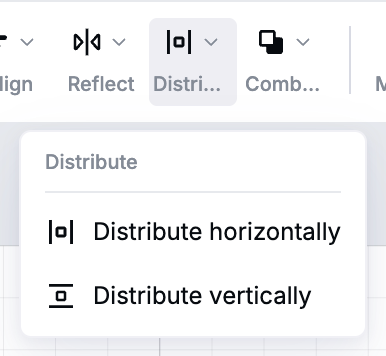
Distribute horizontally: spaces the selected objects evenly between the leftmost and rightmost edges of the objects in the selection area in the horizontal direction.
Distribute vertically: spaces the selected objects evenly between the leftmost and rightmost edges of the objects in the selection area in the vertical direction.
Reflect an object
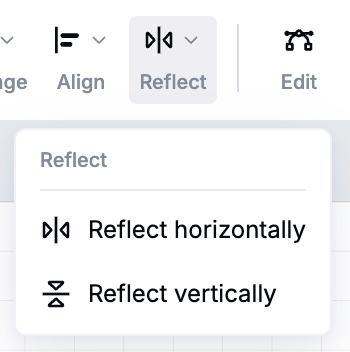
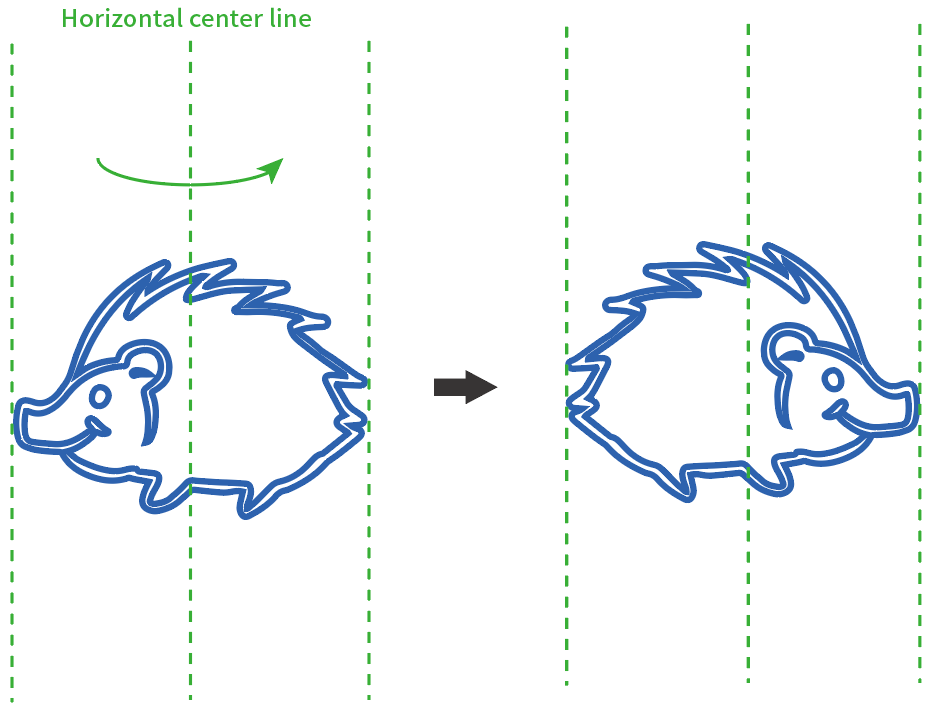
You can reflect an object as required.
Reflect horizontally: reflects the selected object using the horizontal center line as the axis.
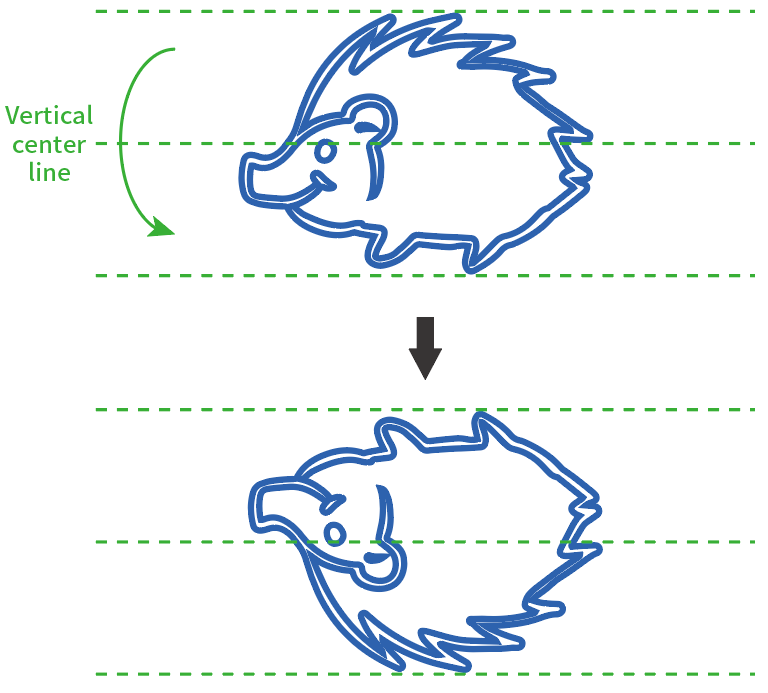
Reflect vertically: reflects the selected object using the vertical center line as the axis.
Set the size of an object
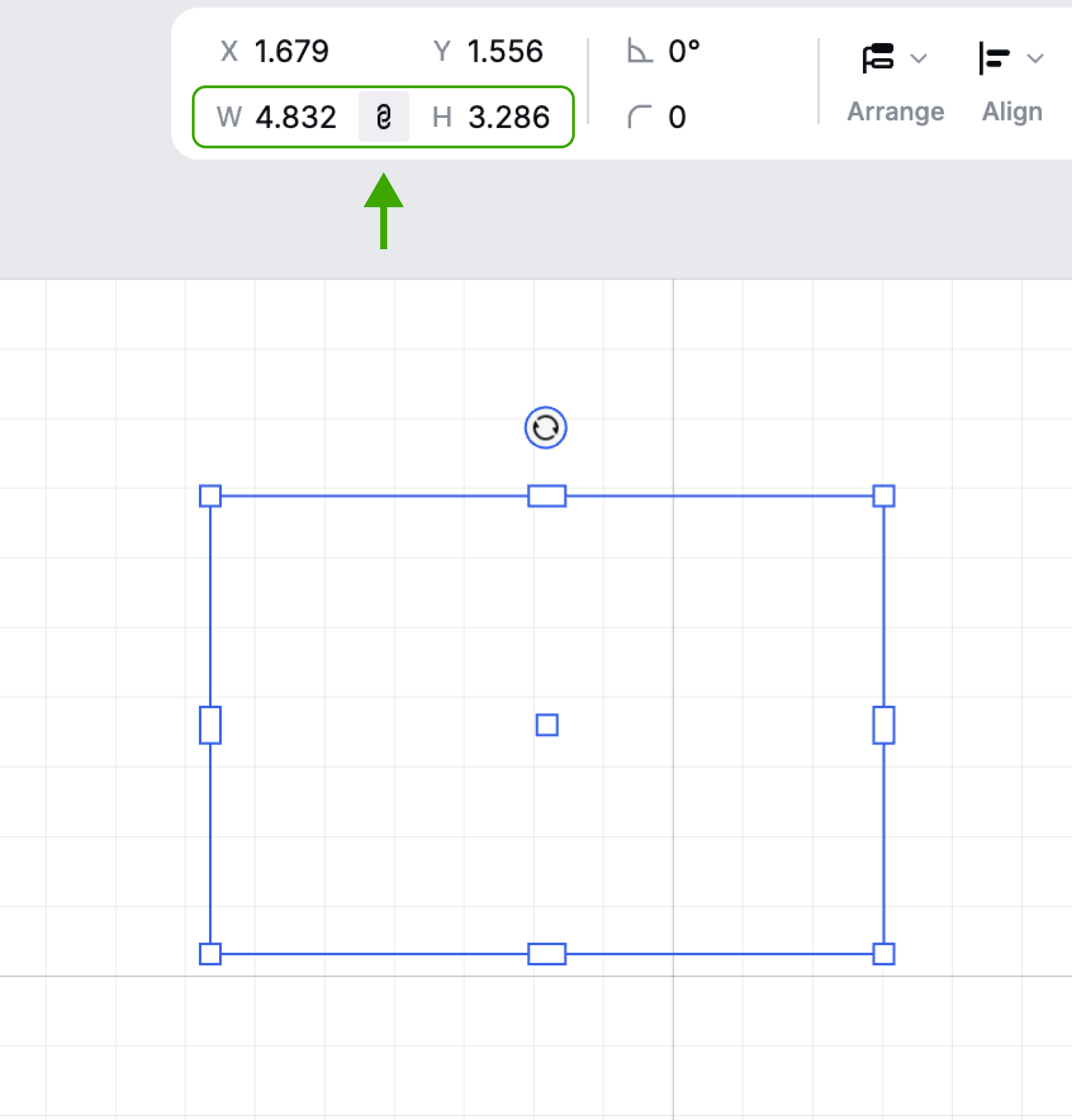
You can set the size of an object by entering its width (W) and height (H). The aspect ratio is locked when you insert or import an object into the canvas. You can click the Lock aspect ratio icon to unlock the ratio.
Rotate an object
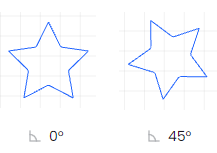
You can rotate an object by entering an angle. A positive value indicates rotating clockwise, and a negative one indicates rotating counterclockwise.
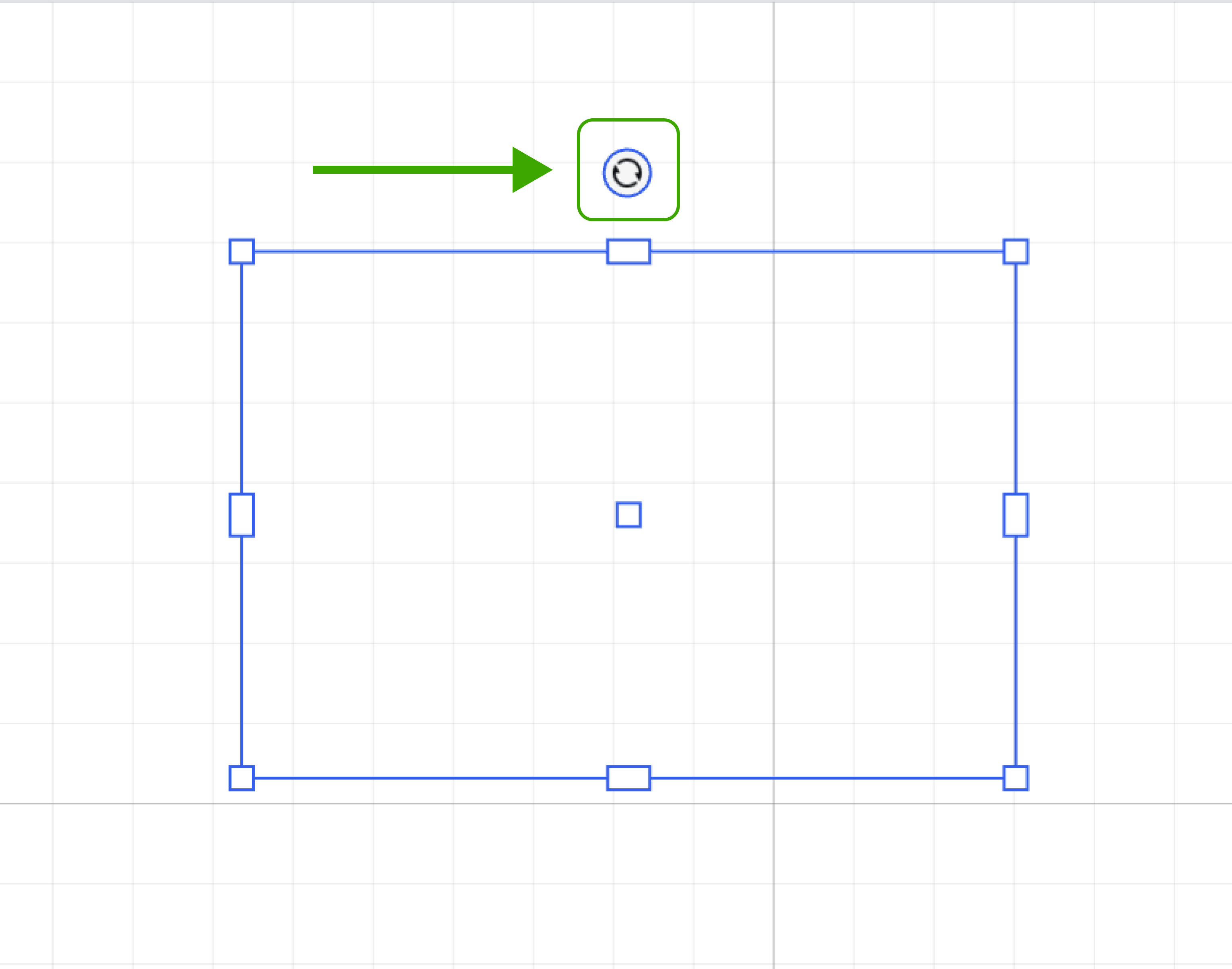
Drag the rotation button to rotate freely. Horizontal and vertical directions are snapped by default.
- Shortcut: Ctrl/Command to disable snapping
- Shortcut: Shift to snap every 15°

Services & Help
Learn & Education

Copyright © 2025 xTool All Rights Reserved.