
xTool Store
Import & Parse Vectors
Updated Feb 27,2026
Updated Feb 27,2026
- Double-click xTool Studio to open the software and create a new project.
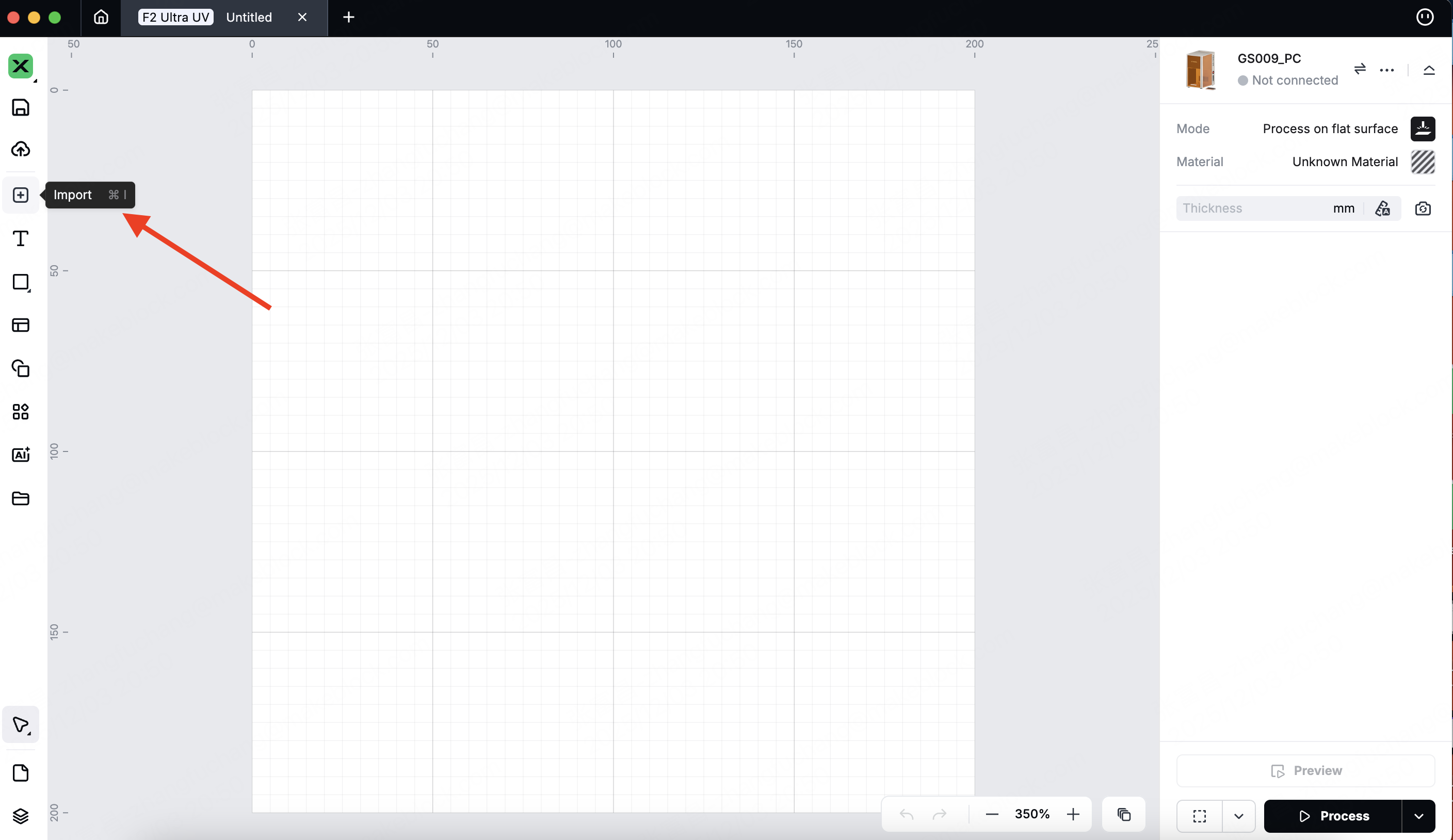
- Select the import option: Find and click "Upload" in the left toolbar. In the pop-up file selection dialog box, import your vector files (in svg or dxf format).
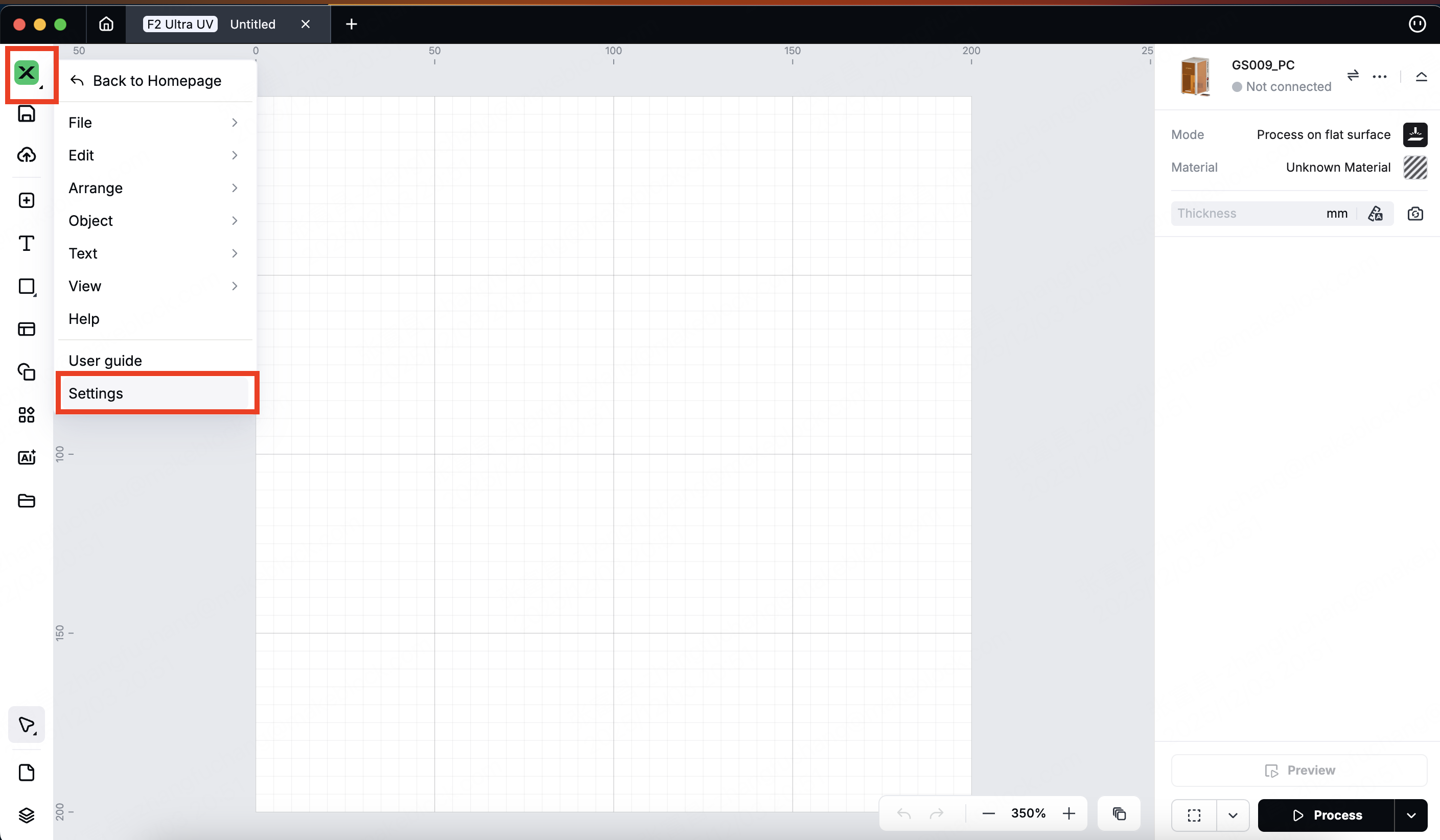
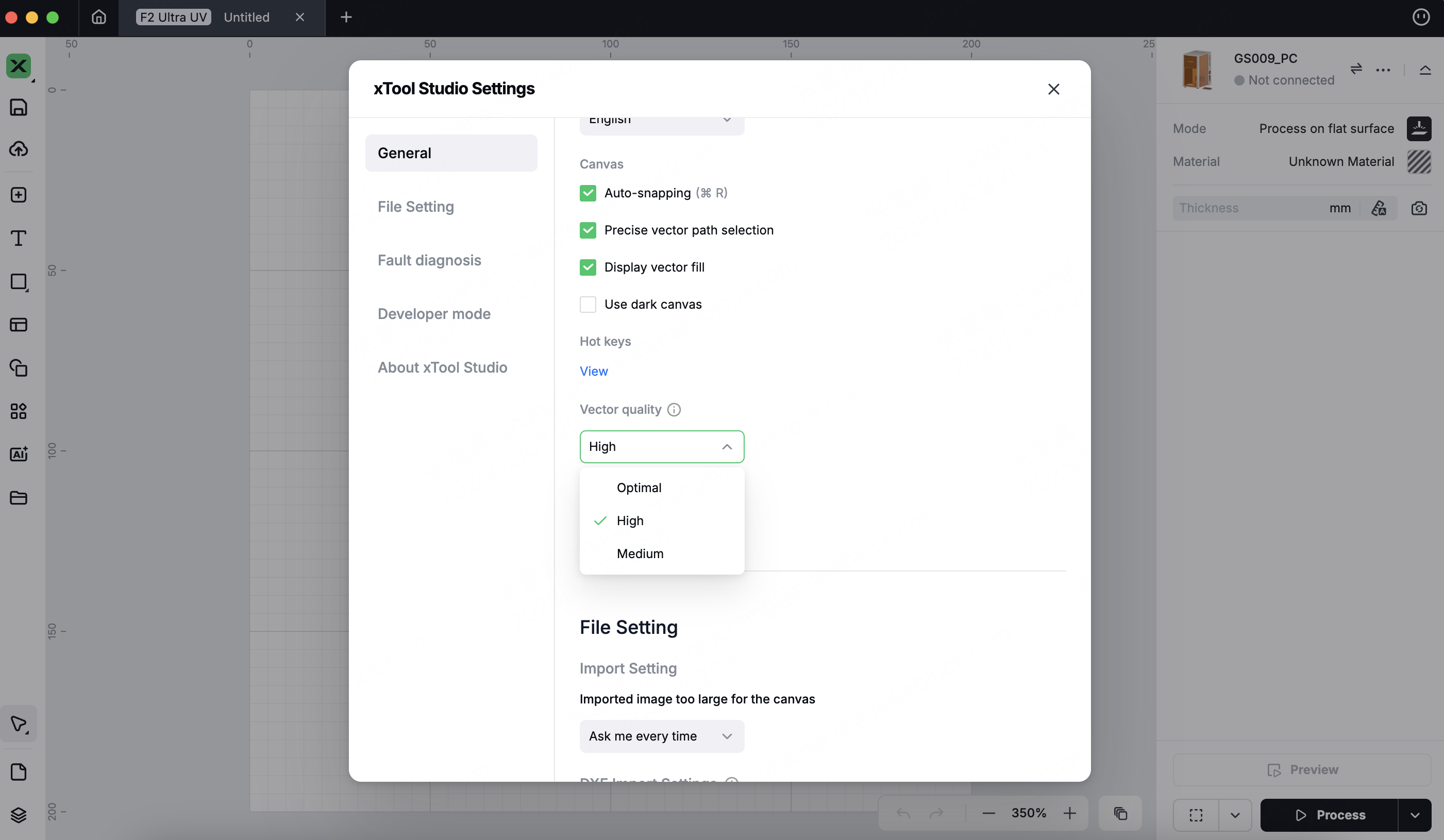
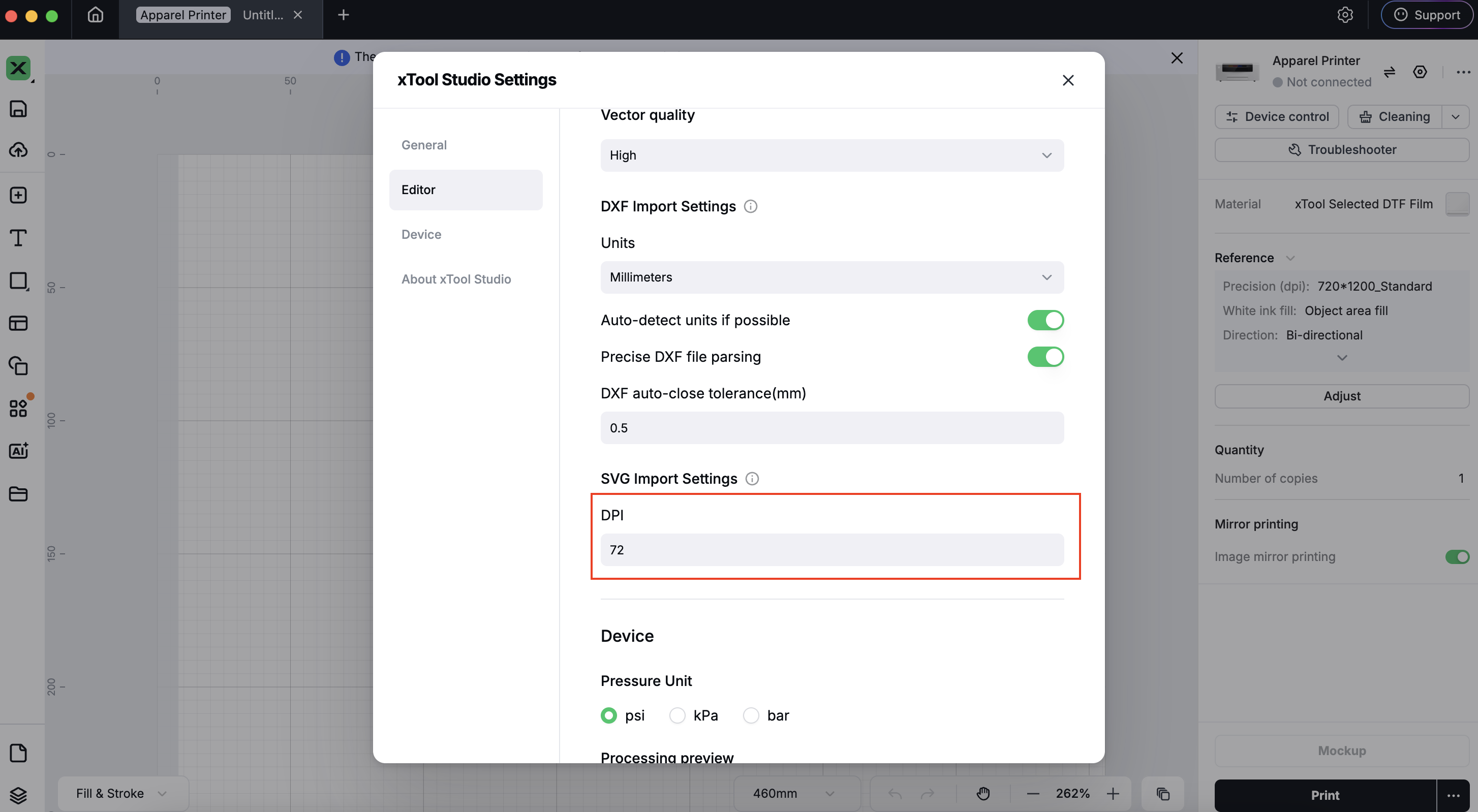
- You can adjust the quality of imported vector graphics in "Settings". The quality levels are divided into "Best", "High", and "Medium", and this setting will take effect the next time you import an image file.
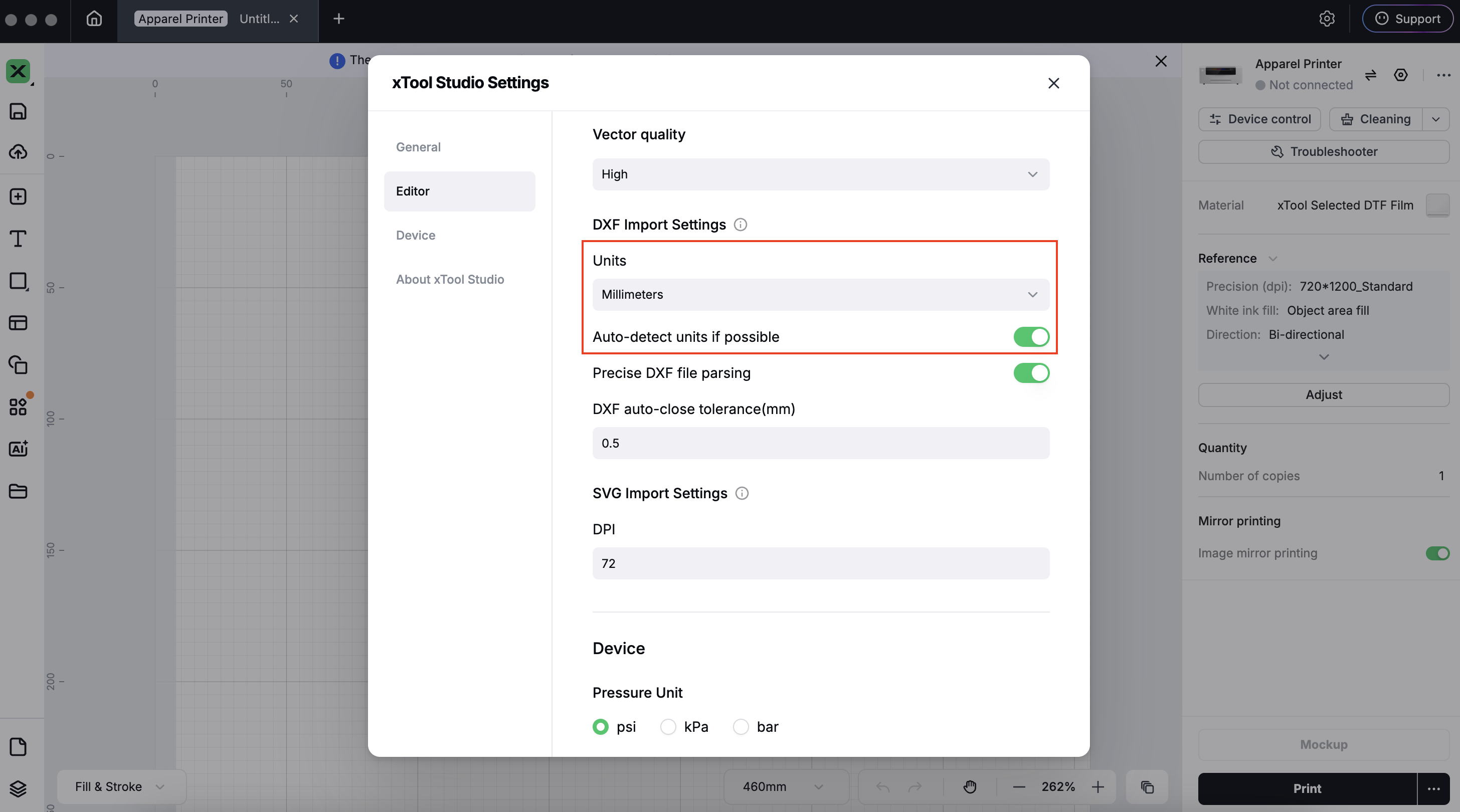
- You can adjust the units for DXF in Import Setting.
If Auto Detect Units is enabled and your DXF file contains unit data, the system will automatically identify and apply the correct units, and the units configured here will not be used.
If Auto Detect Units is disabled, the system will parse the DXF file using the units currently selected in Settings.
- You can adjust the DPI value for SVG import in Import Setting, which determines the rendering size of the SVG on the canvas.
For example, if an SVG exported at 72 DPI from another software is imported into the xTool canvas using a 72 DPI setting, the initial width and height displayed will match the dimensions in the original software.
If it is imported using a 96 DPI setting, the initial width and height shown on the canvas will appear smaller.
Preview
Was this page helpful?
47 out of 53 found this helpful
Help Ticket
Use this help ticket to submit your issue. We will respond within 1 business day
Submit a Ticket Tags
Help Ticket
Use this help ticket to submit your issue. We will respond within 1 business day
Submit a Ticket 
Services & Help
Learn & Education

Copyright © 2025 xTool All Rights Reserved.