What is Cut
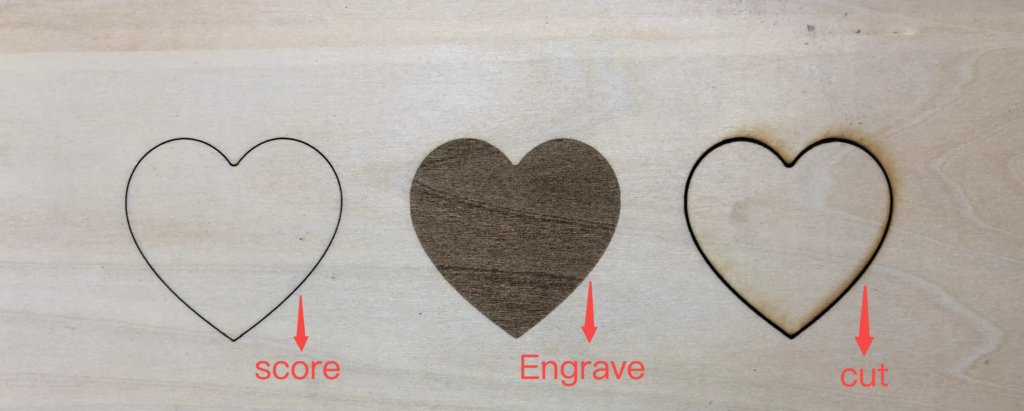
The Cut function of xTool Studio involves the use of a laser beam to cut a flat material so that the material is cut completely along the contours of the design.
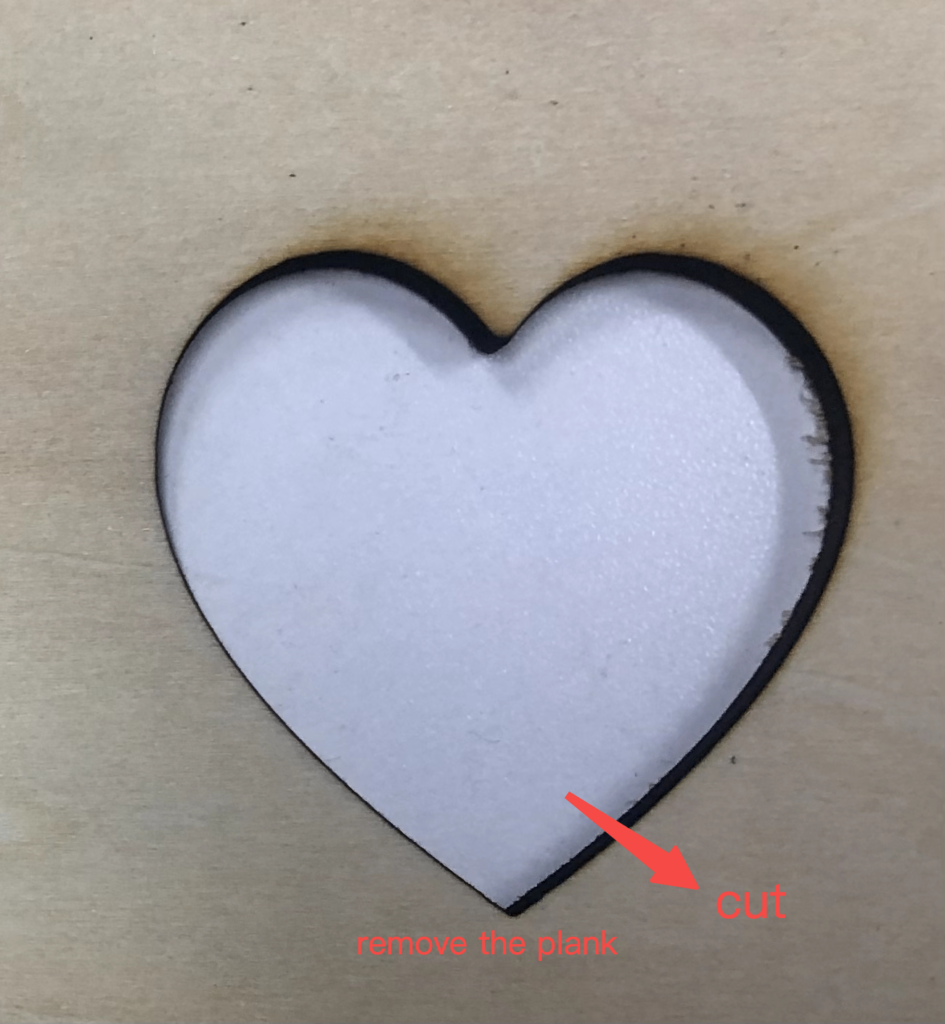
When you Cut a vector, the vector will be cut out through its outline.
When to Use Cut
Object of Cut
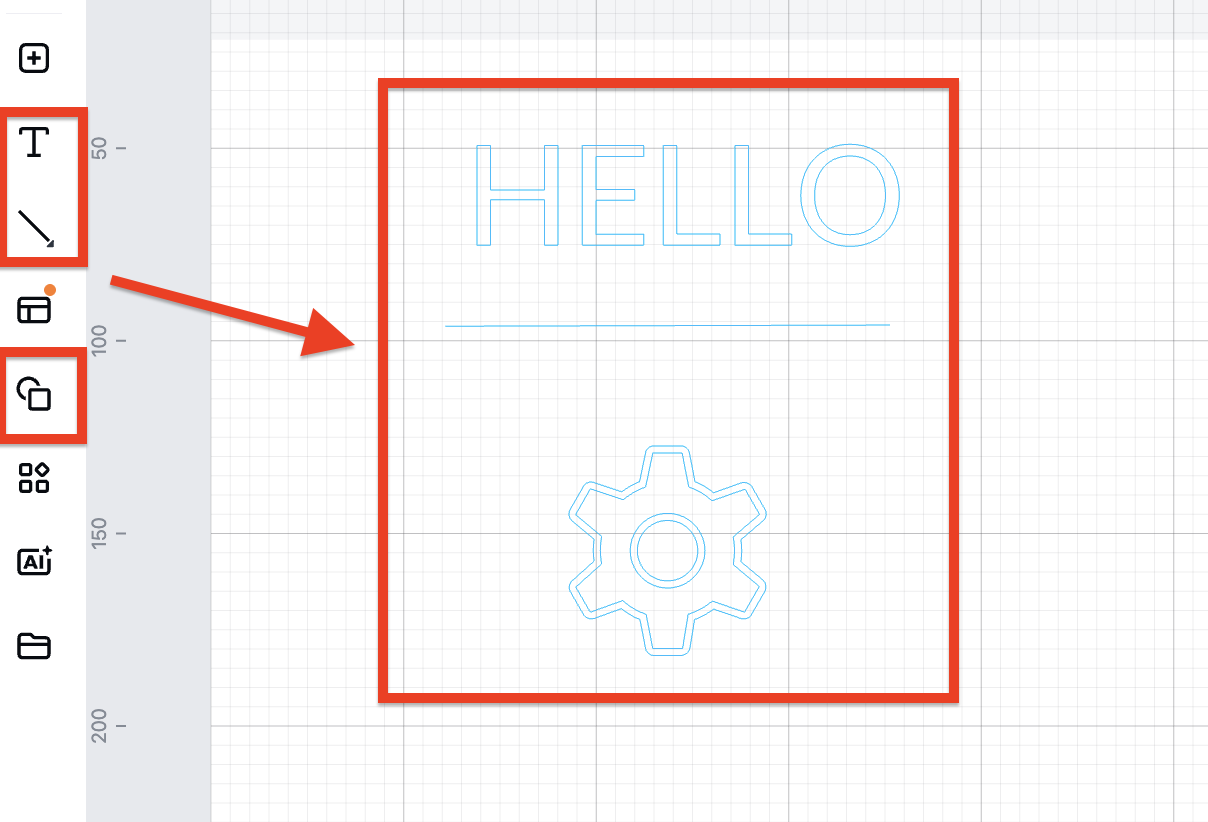
This function only supports the processing of Vector.
Advertising production
Used for cutting billboards, signage, and more, the Cut function provides a fast, precise solution, especially when complex shapes and patterns need to be cut accurately.
Home decoration
For cutting decorative wood, acrylic panels, etc. to create personalized home décor such as wall hangings, photo frames, ornaments, etc.
Artistic creation
Artists can use the Cut function to create a variety of artworks, such as metal art, wood art, etc., to realize complex designs and fine cuts.
Industrial manufacturing
In the field of industrial manufacturing, the Cut function is used to create prototypes or small batch production parts, especially in the product development stage, which can quickly realize the transition from design to real object.
How to Use Cut
Using 3mm Basswood Plywood as an example:
The finished product looks like this:
Tips & Tricks
Use slats or honeycomb panel
To cut material, you are advised to place the slats or honeycomb panel on the baseplate before placing the material. The slats or honeycomb panels can reduce the burned area on the back of the material and protect the baseplate.
Cut VS Score
When using Score mode, if the power is too high or the speed is too slow, the material will also be cut off. However, the engraving paths of Score and Cut are not the same, for example, when cutting concentric circles, using Score will cut the outermost circle first, resulting in the inner circle not being able to be cut. With Cut, the inner circle will be cut first and then the outer circle will be cut.
Use of xTool Material EasySet Library
If you're using materials from xTool, leverage the xTool Material EasySet Library to find the most suitable parameters for your engraving job. This library can save you time and ensure that your engraving results are consistent and professional.
Lower the focus and Tab Generation
The processing mode of Cut also supports functions such as Lower the focus and Tab Generation

- Lower the focus
The focus-lowering function is developed for laser cutting. By moving the laser module down to lower the focus, the cutting ability of the laser machine can be improved.
You can enable this function to cut thick material to ensure better cutting performance. After enabling Lower the focus, you can set By, the distance the focus, is to be lowered by.
- Tab Generation
The Tab Generation function was developed for the processing mode of using a conveyor feeder. When cutting long objects, you can turn on this function to prevent falling parts from disrupting the transfer process and causing machine anomalies.
💡 Recommended software version: xTool Studio 1.0 and above.