As you use xTool Studio, you will receive messages from the system to help you use the machine more safely and conveniently.
Find Messages
On the homepage, Messages is symbolized as a Bell Icon in the upper right corner of the main toolbar.

Unread Messages
The number on the bell is the number of unread messages.

The Messages pop-up window will also indicate the number of unread messages you have. You can also check the box in front of Unread to see only unread messages.
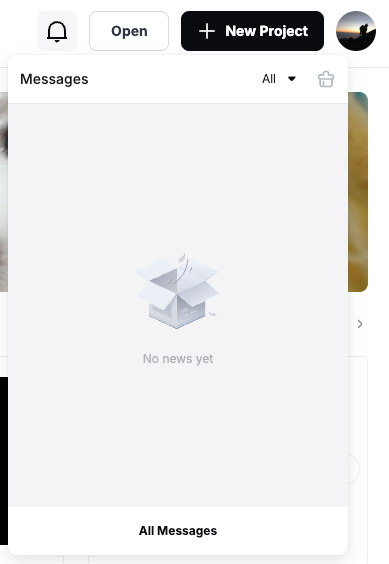
Unread messages are also marked with a red dot.
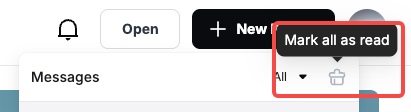
Note: You can click Mark All as Read in the upper right corner to cancel these unread message alerts.
Message types
You can click on the names All, Device, System, App, and Activity to view the corresponding messages.
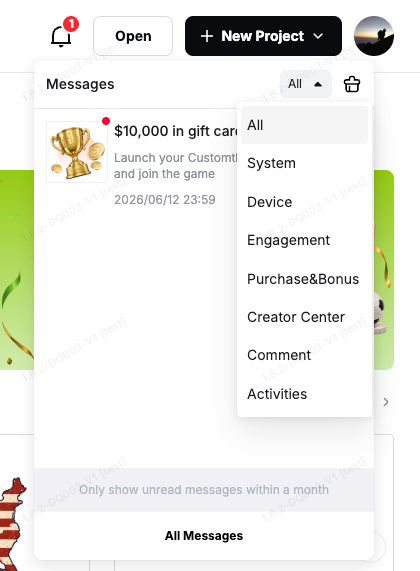
- Device messages
Device messages will alert you to the stages and results of using the machine. It will also help you with safety training.
- System messages
Generally, system messages are usually important notifications or alerts sent by the platform. They may be important information about software updates, security alerts, or other platform functions.
- App messages
Application messages are notifications sent to you by xTool software, such as notifications of orders, comments, likes, shares, or other interactions involving you.
- Activity messages
You may receive tips on how to use your device, related projects, or the latest events of the season.
All messages
Click All at the top of the pop-up window to see all the messages.
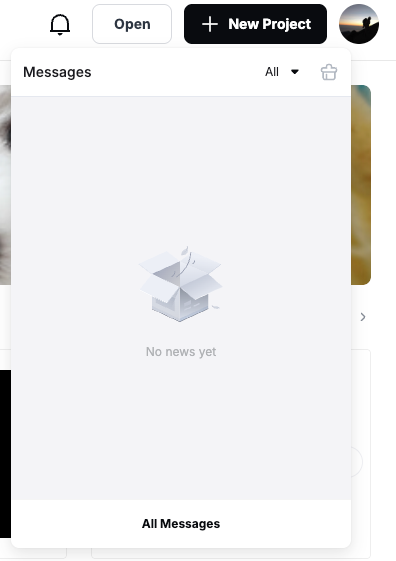
You can also click All Messages at the bottom of the pop-up window to see all messages.
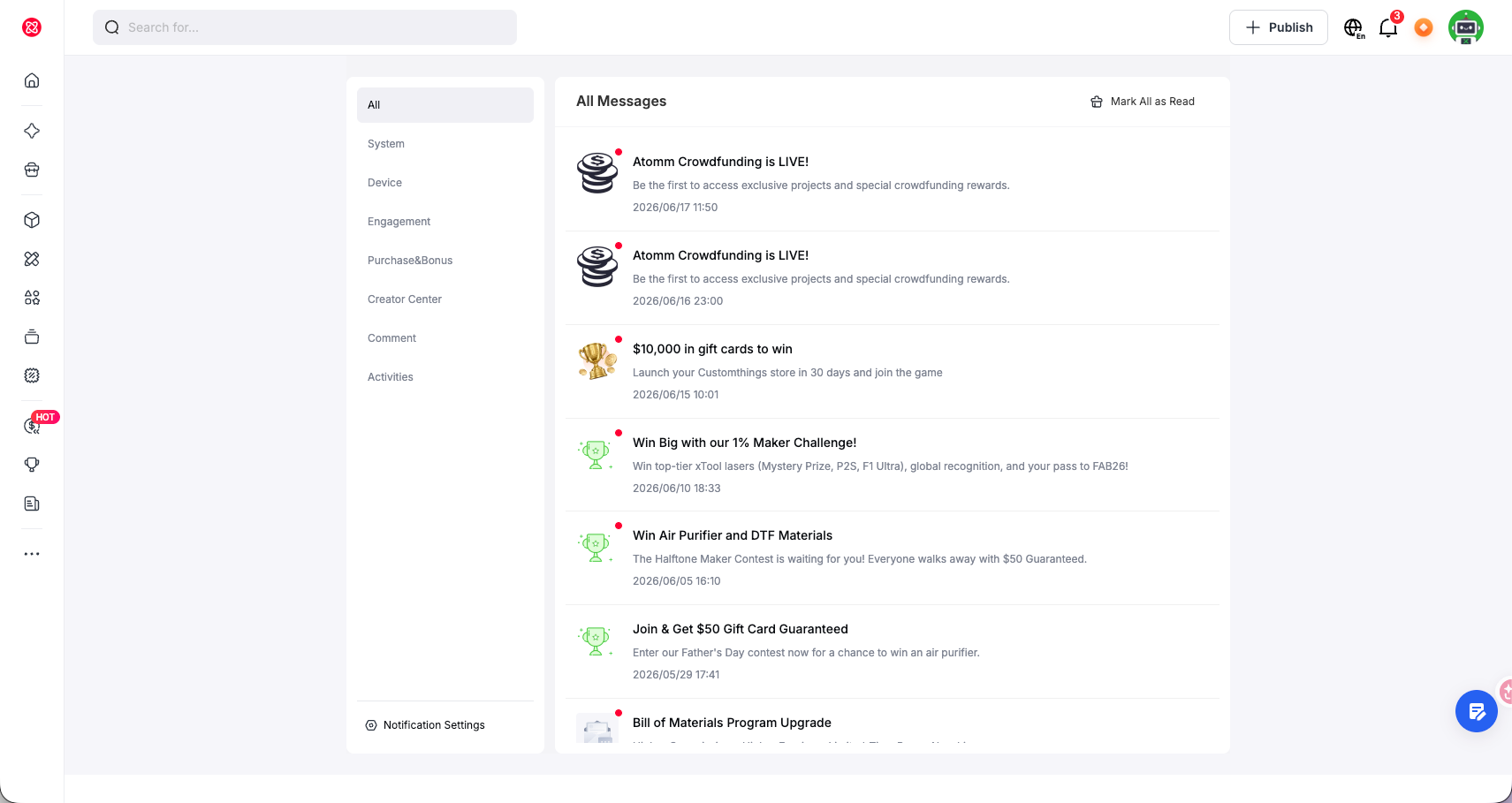
Message Settings
You can click Message Settings to set whether to receive App and Activity messages.
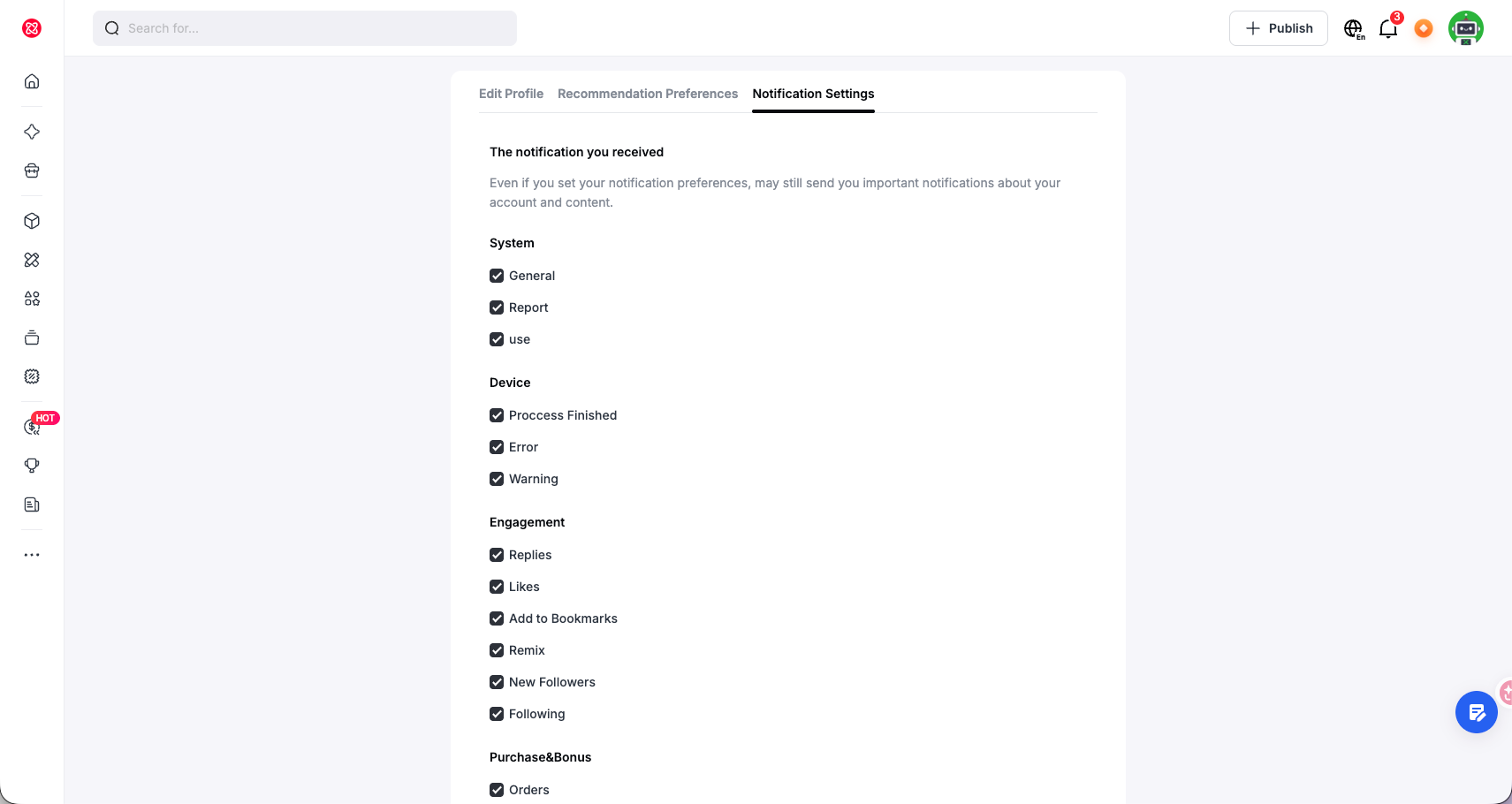
Note: System messages are important information about security and convenience, and therefore blocking is not allowed.